Steps
Steps have been supported in Companion since 3.0, to allow for creating powerful and complex buttons. This replaces the Latch functionality that was possible in previous versions.
Defining Steps
To start with steps, click the Add step tab on a button. You will now have a second tab of actions on the button
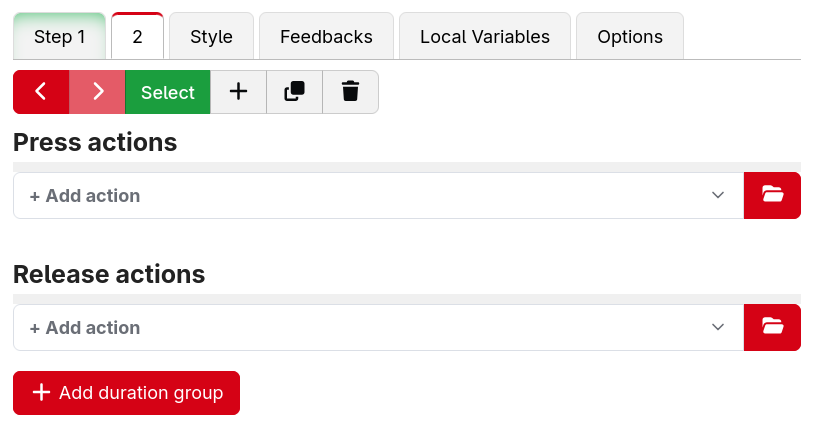
Now when you press the button, on the first press it will execute the actions from Step 1, the following press with execute the actions from Step 2. It will keep on cycling through between the two.
You can add as many steps as you like to a button, depending on your use case.
Controlling progression
By default the step will advance each time the button is released. There is also an internal action to adjust or set the current step of a button.
Sometimes you don't want it to progress between steps automatically like this. You can disable this with the Step Progression option in the button configuration further up. Instead you either choose to make the current step number be based upon an expression, or to only be changed by the internal actions. With these, you can do complex scenarios like shift layers where holding one button will change other buttons to step 2, and switch back to 1 upon release.
Example: You have a projector and want to close its shutter when you press the button and then open the shutter when you press it a second time. To do this:
- add an action to close the shutter in the Step 1 Press actions list,
- add the open shutter action to the Step 2 Release actions list.