Triggers
In the Triggers tab, you can add, edit and remove triggers for your Companion Setup.
Triggers can provide an extra hand in making any setup more automated and allow for you to program some simple automation.
To add a new trigger, click the button Add Trigger and fill in the information mentioned below.
Configuring
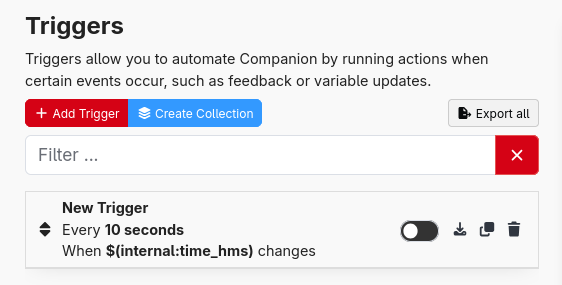
Once you add a trigger, it can be opened in the edit panel on the right.
When adding a new trigger, it starts off as disabled so that it doesn't get executed until you are ready for it.
To begin with you should give it a name, and fill in the other fields.
Triggers have 3 sections to configure
Events
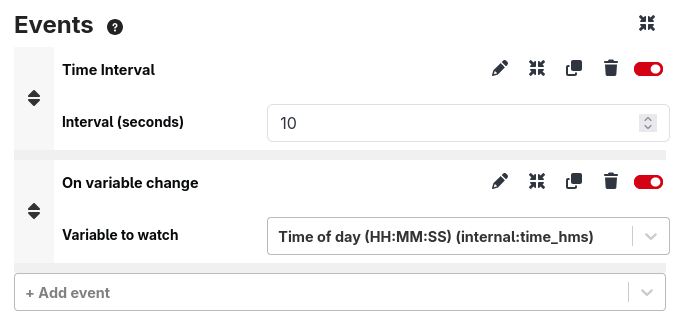
This defines when the trigger will be executed.
The trigger will be executed when any of these events occur.
Common events are Time interval, At random time interval, and On variable change
Condition
This allows you to apply a filter on the events.
For example, if using the On variable change event, you can use a condition to limit the trigger to execute only when the variable has a value of 1.
This is a subset of the feedbacks that can be used on buttons.

When the trigger fires from an event, the built-in (internal) conditions are checked again at that moment. This
means a condition such as Variable: Check boolean expression with randomInt(1, 10) > 7 is re-rolled every
time an event happens, so you can use it to make a trigger run only some of the time. Conditions using
feedbacks from connections use the most recent value reported by the connection.
Actions
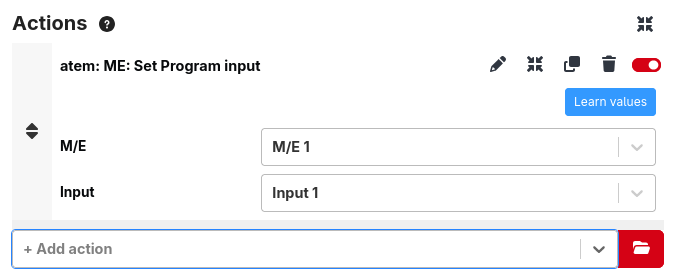
This defines what will happen when the trigger executes and condition is met.
Every action that can be used on a button can also be used here. If you want, you can make it press a button using the Button: Trigger press and release action. Its Hold duration (ms) option lets you hold the button down for a while before releasing it, which is useful for buttons with long-press actions. Leave it at 0 to release straight away.