Surfaces
Surfaces in Companion map physical input devices such as keypads, knobs, and sliders to the button grid in Companion. Several of the most popular such surfaces are made by Elgato (the Stream Deck series) and XKeys. Integrations for controlling these surfaces are bundled with Companion. Starting with Companion 4.3 many other surfaces are supported through "independent" surface modules. See the Surface Modules help page for details.
Configured Surfaces
Configured surfaces define the mapping from Companion's buttons to the physical keys and knobs on the physical surface as well as certain surface-specific attributes such as button brightness.
Before Companion can recognize a new surface you must ensure that the appropriate surface integration module has been installed and enabled.
If your Stream Deck is missing from this list, you might need to close the Elgato Stream Deck application and click the Rescan button.
If any of your surfaces are not in the configured surfaces list, press the Rescan USB button. You can avoid needing to do this by enabling Watch for new USB Devices in the settings panel on the right.
On Linux, USB surfaces need some udev rules installed before Companion can use them, and these rules
depend on which surface modules you have enabled. When the rules need updating, Companion shows an
alert on the Surfaces page. On a desktop install it can apply the rules for you; on a headless install
the install script sets them up. See the
README included with the Linux download for the manual steps.
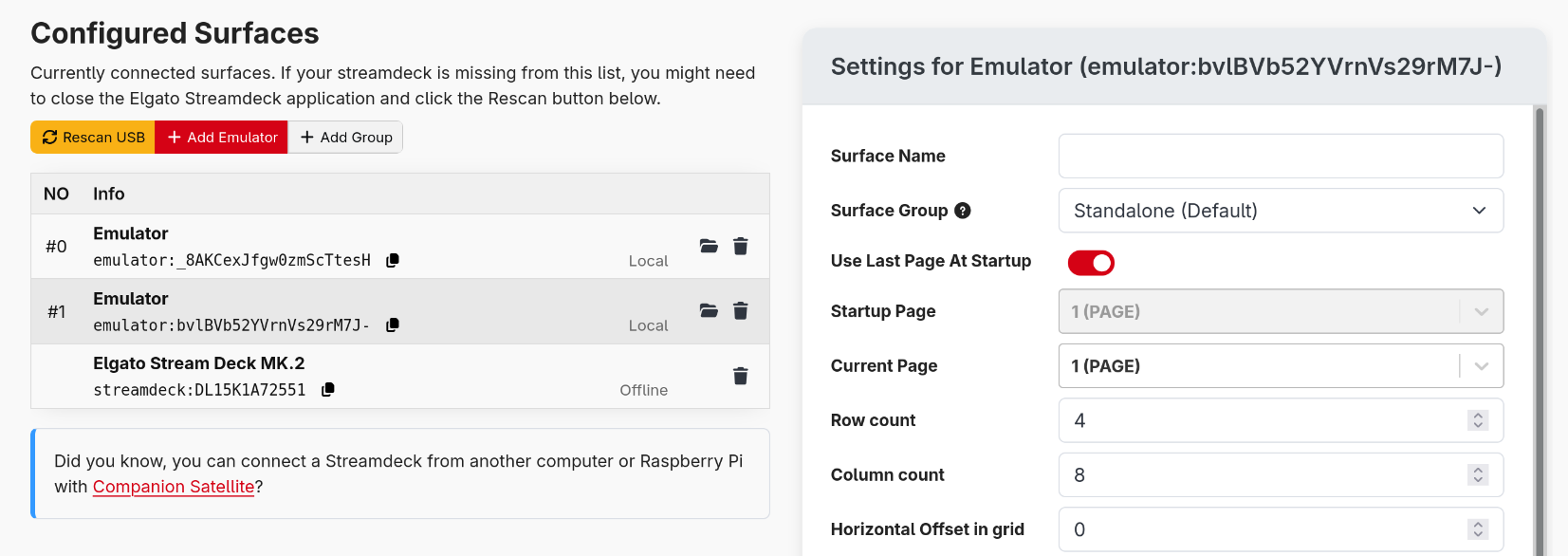
Here you can see all your current surfaces, both local and connected over Satellite, as well as any available emulators.
Enabling and Disabling Surfaces
Each surface has an enable/disable toggle in the surface settings. Disabling a surface stops Companion from using it, but keeps its configuration intact. This is useful when running Companion alongside other software (such as the Elgato Stream Deck app) — you can reserve specific devices for Companion and leave others to be managed by the other application.
This toggle doesn't apply to surfaces connected over Satellite
Surface Settings
Click on any Surface in the table to open the settings for that surface.
The exact list of settings will vary based on surface type, but the common set of options is:
- Surface Name: Set a name for this surface. This is used anywhere this surface is referenced in the UI.
- Surface Group: Assign this surface to a Surface Group.
- Use Last Page At Startup: Whether the surface should remember the last page it was on at startup, or use the Startup Page setting instead.
- Startup Page: If 'Use Last Page At Startup' is not enabled, the page the Surface will show at startup.
- Horizontal Offset in grid: If the device is smaller than your button grid, you can adjust the position of the surface within the grid
- Vertical Offset in grid: If the device is smaller than your button grid, you can adjust the position of the surface within the grid
- Surface Rotation: Sometimes it can be useful to mount the surface in a different orientation than the manufacturer intended. You can compensate for that here.
- Brightness: The brightness of the buttons.
- Button rotation: If you've physically rotated your Surface, use this to match the button orientation.
- Never pin code lock: Exclude this device from pin-code locking.
Page Permissions
Starting with v4.2, individual surfaces or surface-groups provide the option to restrict which pages a device -- or devices in a group -- may access. For example:

This allows you to distribute a single site configuration but with access to particular pages defined by a person's role. Each device or group can then be limited to just one or a few pages relevant to their role.
Next/Previous page-change actions -- including the standard page buttons, custom actions, and swiping (for surfaces that support it) -- will follow the order selected here. If you want to change the order, simply delete items from the list and re-select them in the order you prefer.
Surface Groups
Surface groups allow for linking multiple surfaces to always be on the same page.
This is convenient for setups such as having two Stream Deck XLs side by side, which want to be treated as a single 16x4 device.
To do this, use the + Add Group button to create a new surface group. Then for each surface you want to add to the group, open its settings and change the surface group dropdown to the newly created group.
Elsewhere in Companion, the actions which can change the page of a surface will no longer see the individual surfaces, and can instead pick the group. Any existing actions referencing a surface will perform on the group that surface belongs to.
Another use case for this is to provide a stable id for a surface.
This helps setups where you need to be able to swap out a Stream Deck quickly, and also need actions to reference specific Stream Decks.
You can create your groups and program the system ahead of time, then later add or remove surfaces to the groups without needing to update any buttons.
Remote Surfaces
It is possible to connect some surfaces over the network to Companion. This could be with Companion Satellite, or something like a Stream Deck Network Dock
For some of these, Companion needs to connect to the surface which can be setup in this page.
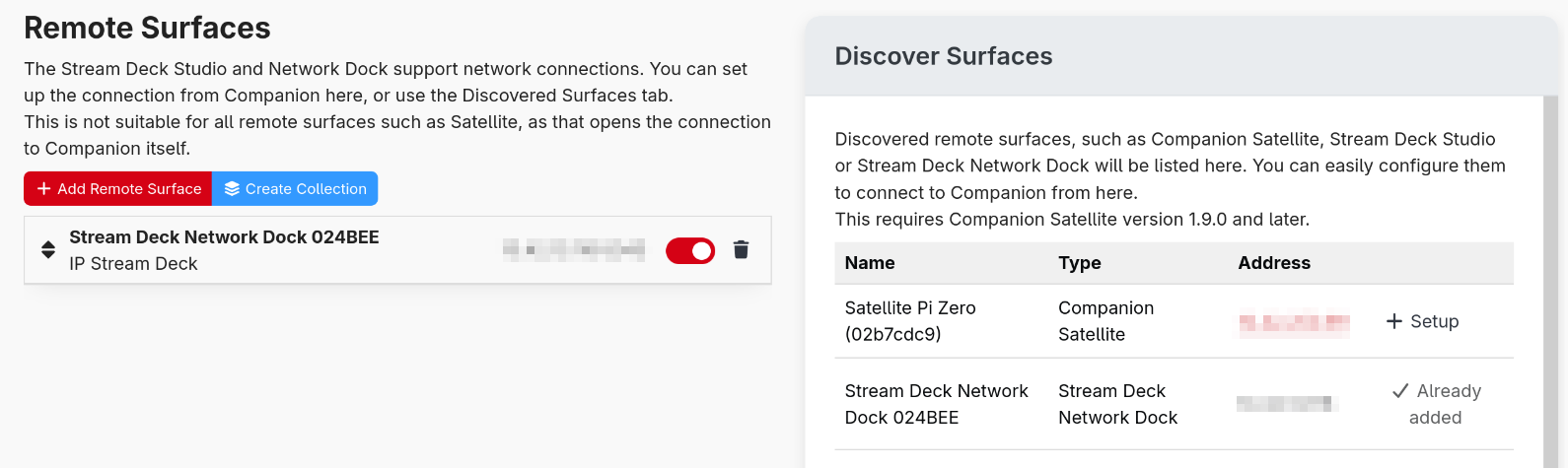
On the left is the connections that have been setup, and on the right is discovered surfaces on your network that you can setup.