Supported Surfaces
Companion supports a variety of physical and virtual input devices (surfaces) in addition to remote-control protocols. Surfaces provide buttons, encoders, displays, and other controls that you can map to actions in Companion.
Each surface may have unique capabilities and limitations. See the individual surface pages for model-specific details, configuration tips, and known limitations.
Surface Modules / Integrations
Since Companion 4.3, surface support is delivered through a module system — the same approach used for connections. This means that as new surface models are released, or bugs are fixed in existing ones, you can update just the relevant surface module without updating all of Companion.
Surface integration module settings are accessible from the right-hand panel of the Surface Page. (If your browser window only shows a single panel, click the blue Show Settings button to get to the settings panel.)
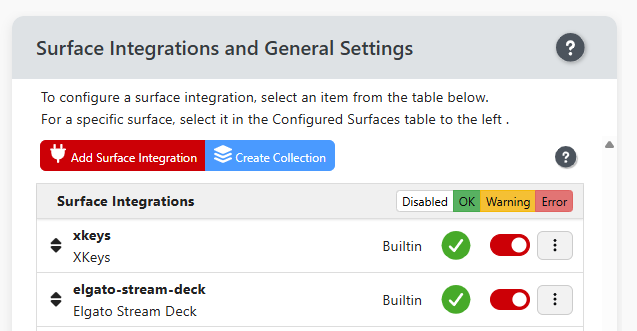
In the right panel, click the red Add Surface Integration button.
If the "All Available" button isn't blue, click it to show modules you haven't yet installed. When it looks like this: All Available you're seeing all available surface modules.
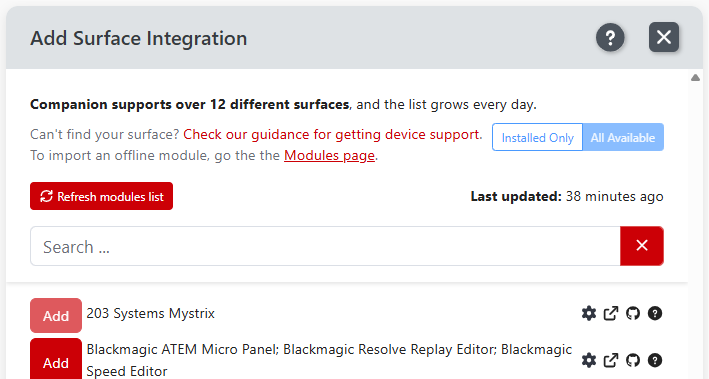
From there, Installing, configuring, and updating a surface module follows the same workflow as for Connections.
You can also add surface modules from the Modules page, including importing offline surface modules.
A full list of available surface modules and supported device models is also available at the Bitfocus Developer site.
General Surface Settings
Global surface settings, such as watching for new USB devices and PIN lockout, are on the Surfaces tab of the Settings page. See the surface settings help page for details, or the surface configuration help page.