The User Interface
This page describes the layout that you will see on every page, whether configuring devices and surfaces; defining buttons, variables or triggers; or performing other tasks and diagnostics.
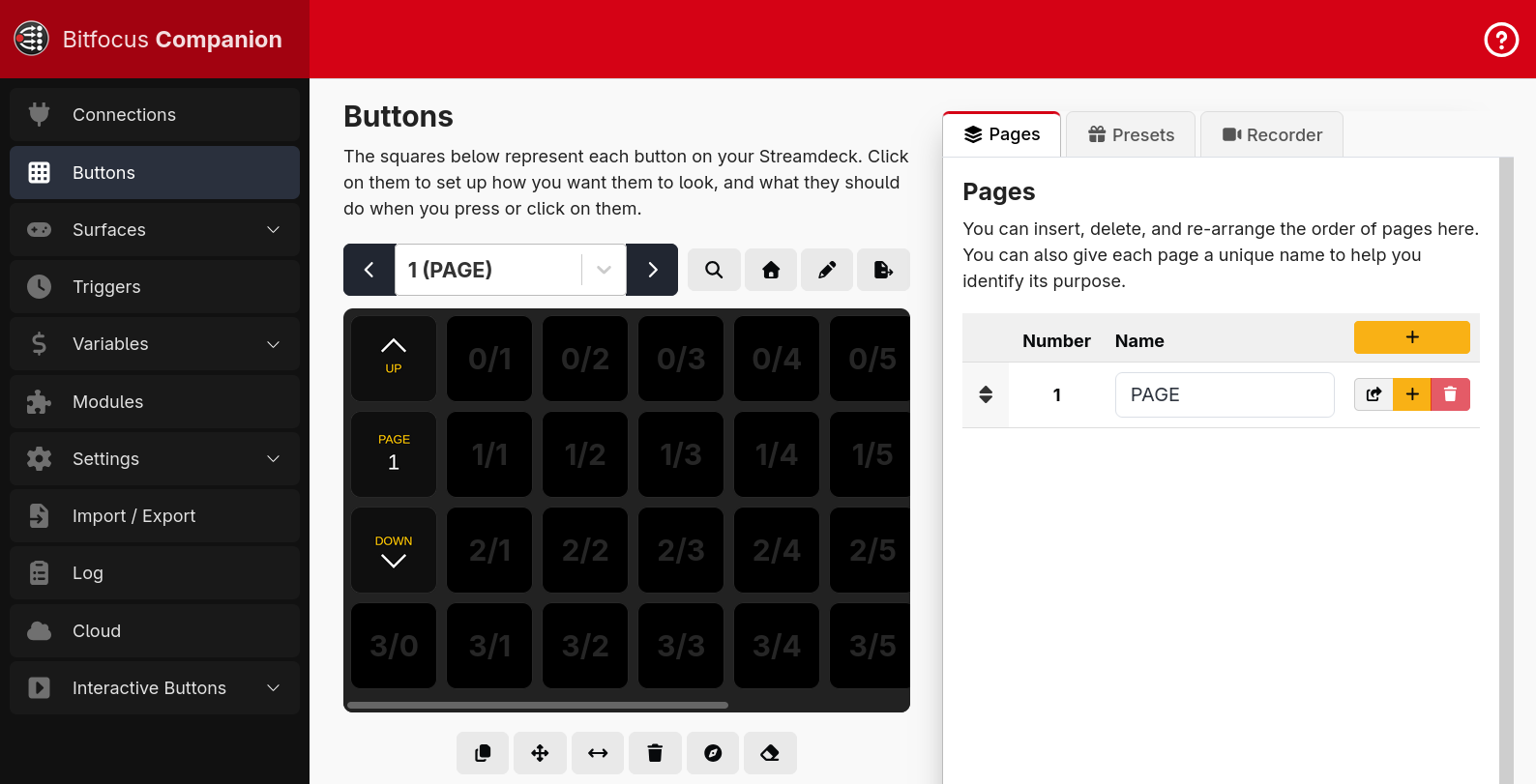
Main Layout
- You navigate to pages from the left Sidebar.
- The header at the top of the page may show notifications, such as the availability of new versions of Companion, and also provides quick access to help and support. (If you are using the Admin Password feature, a lock-icon appears in the header allowing you to lock the Admin interface with a single click.)
- The main area of the page is typically split into a large main panel (left) for primary tasks and a secondary panel (right) for details, previews, or contextual settings.
- On wide screens, you can drag the divider between the main and secondary panels to give either of them more room. Double-click the divider to put it back in the middle. Each page remembers its own divider position in your browser.
- On smaller screens, the main and secondary panels will be combined using additional navigation controls to reduce scrolling and keep contextual settings accessible.
Sidebar Options
Starting with version 4.3, you can customize how you interact with the sidebar through a new context-menu (typically a right mouse-click).

- Collapse All Groups/Expand All Groups will collapse or expand all top-level groups (indicated with the caret in the right-hand margin, such as Surfaces and Variables).
- Auto-Collapse Groups will allow only a single top-level group to be open at a time. Opening one group will close all others (this is sometimes called accordion mode). When active, a check-mark is shown beside it in the context-menu.
- Folding Sidebar/Full-width Sidebar toggles between these two modes. When in Folding mode, the sidebar shows only the icons until you hover over it. (You can also toggle these modes from the icon in the bottom-left of the sidebar.) Note that this option is not available if the window is very narrow (mobile-mode).
- Keep Sidebar Folded keeps the sidebar narrow, even when you hover over it.
- Hide Module Variables/Show Module Variables toggles whether each connection is listed under Variables in the sidebar. They are always available from the main Variables page.
- Show/Hide Sidebar Help toggles visibility of the Help and Support options in the lower non-scrolling section of the sidebar. Since the same options are available from the help menu in the upper-right corner of the window, removing them from here can allow you to see more navigation buttons without needing to scroll.
Help Menu
Starting with version 4.3, you can access help from a menu in the top-right corner of the window (right end of the red header banner), similarly to other popular browser-based apps. The options here are the same as those seen in the lower part of the sidebar. The Sidebar Options section, above, describes how to free up space in the sidebar by hiding the duplicated help entries.

Lists and trees
Many lists in Companion, such as the presets, the variables and the list of actions and feedbacks you can add, are grouped into sections which you can expand and collapse. Hold Alt while clicking a section to expand or collapse all of the sections at the same level at once.