Creating buttons
There are two ways of setting up buttons.
Using presets
The fastest way to define buttons is to use the presets.
Presets are ready made buttons with text, actions and feedback so you don't need to spend time making
everything from scratch. They can be drag and dropped onto your button layout.
Not every module provides presets, and you are able to do a lot more by defining the actions on the
buttons yourself, but presets can be a good starting point for those buttons.
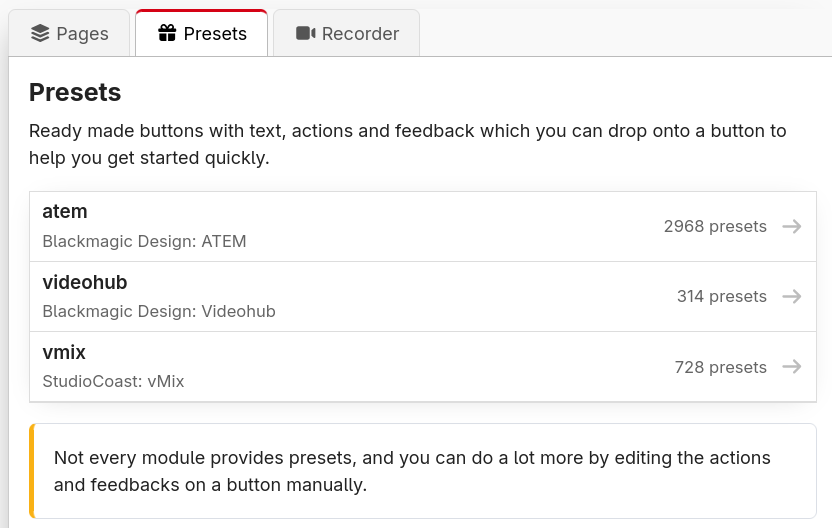
These can be found in the Presets tab on the right side of the button grid.
If one of your modules supports presets, it will be listed in this tab for you to select, just like below.
An example of modules currently loaded with premade presets
Here is an example of presets made for an ATEM ME1
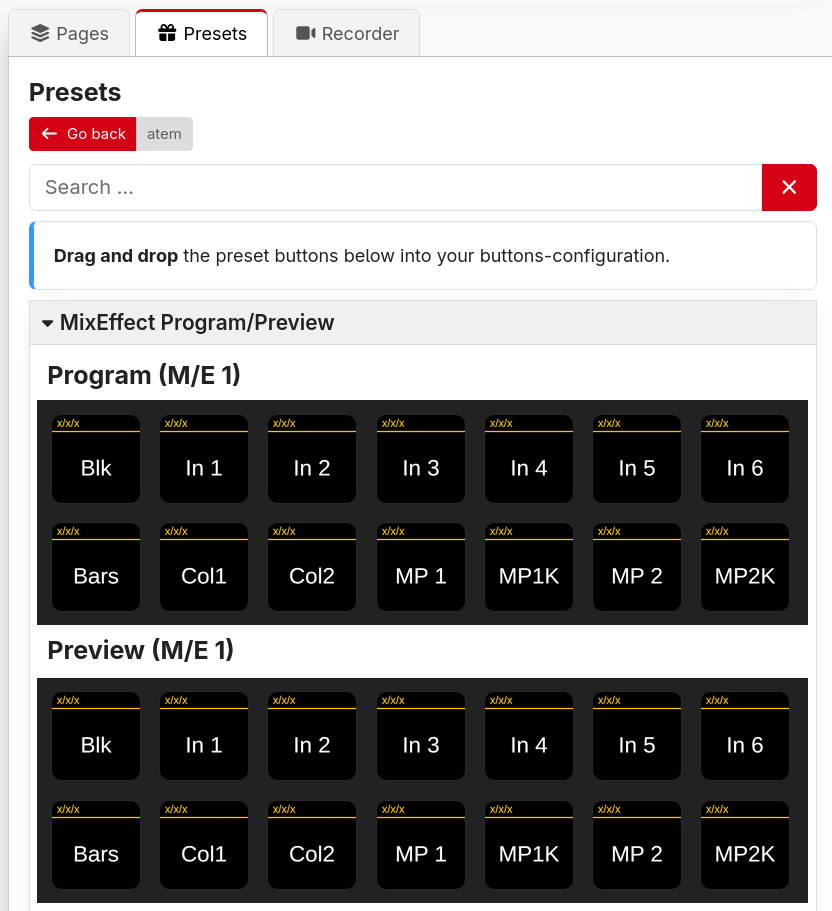
Drag the preset buttons onto a page's button when in the Button Layout view.
Click on a group heading to expand or collapse it. Hold Alt while clicking to expand or collapse every group at the same level at once.
Linked or copied presets
There are two ways a preset can be placed. Choose between them with the When placed toggle at the top of the Presets tab:
- Linked (the default) — the button stays linked to the preset. When the module updates the preset, for example when you update the module or change the connection's configuration, the button updates too.
- Copy — the button is a one-off copy of the preset, which you can then freely edit just like a manually defined button. It won't change when the preset does.
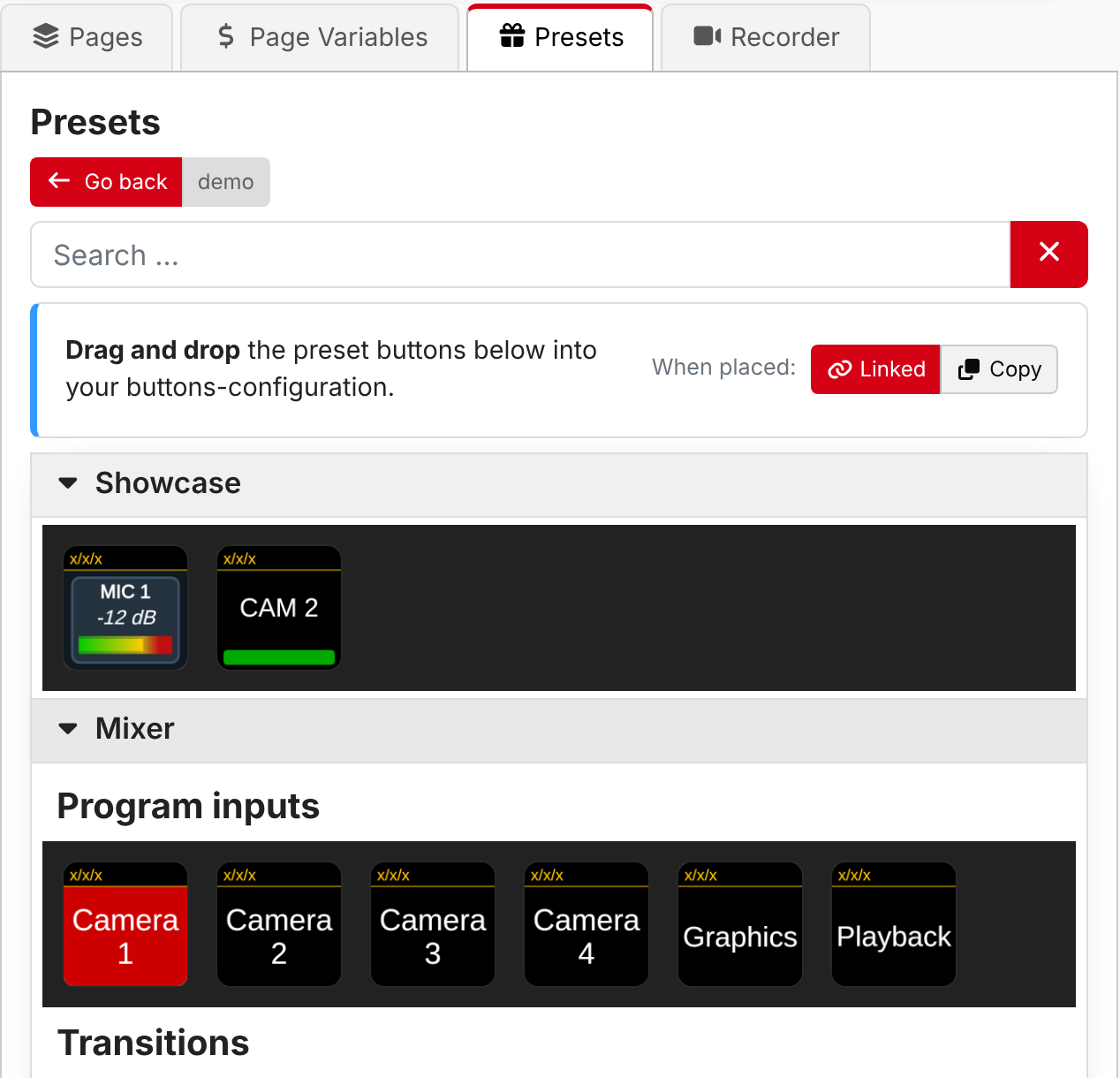
The choice is remembered by your browser, and only affects presets you place from then on.
A linked button works exactly like a normal button: it runs its actions, shows its feedbacks and can have steps. What you can't do is change how it is set up, as that is managed by the preset. When you select a linked button, the editor instead shows:
- Connection — which connection the button uses. You can switch this to another connection using the same module, for example to point a set of buttons at a second video switcher.
- Preset variables — some presets are a template for a group of similar buttons, such as one button per input of a switcher. The values which make each button different are shown here, and can be changed.
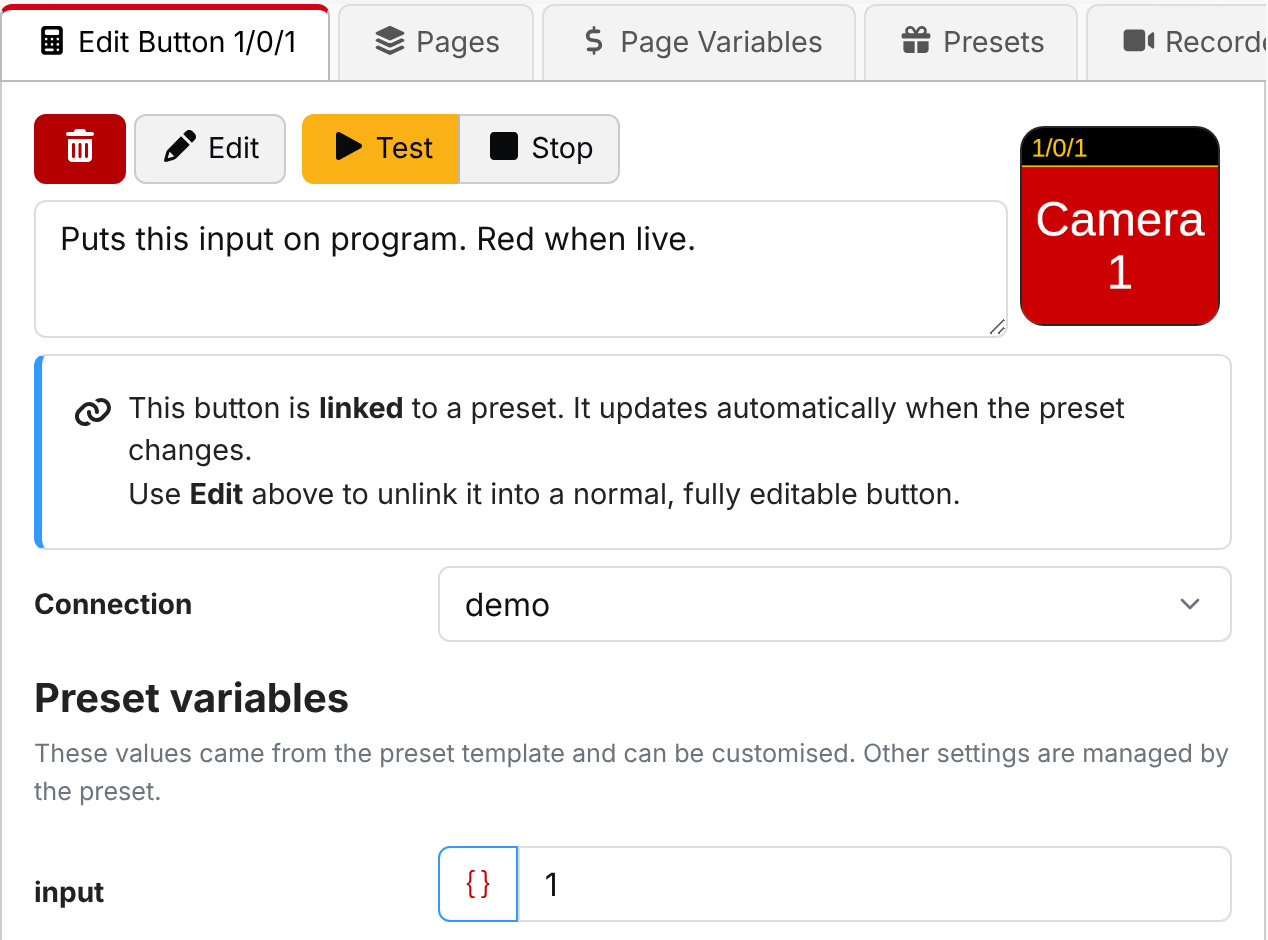
If you want to customise a linked button further, click Edit at the top of the editor. This unlinks the button and turns it into a normal button with the same appearance, actions and feedbacks, which you can then change however you like. This can't be undone, and the button will no longer receive updates to the preset.
If the connection a linked button uses is disabled or deleted, the button keeps showing how it last looked.
Linked presets need a module built for version 2.0 or later of the module API. For older modules the toggle is disabled and presets are always placed as a copy.
Presets are pre-made by the module author, you can't create your own. You can build your own library of presets on other pages, which can be exported and reimported instead.
If you think additional presets may be helpful, you can request them on the module's GitHub Issues page. You can find a link to this in the Connections page
Manually defining
- Click on the button space you want the button to be located on.
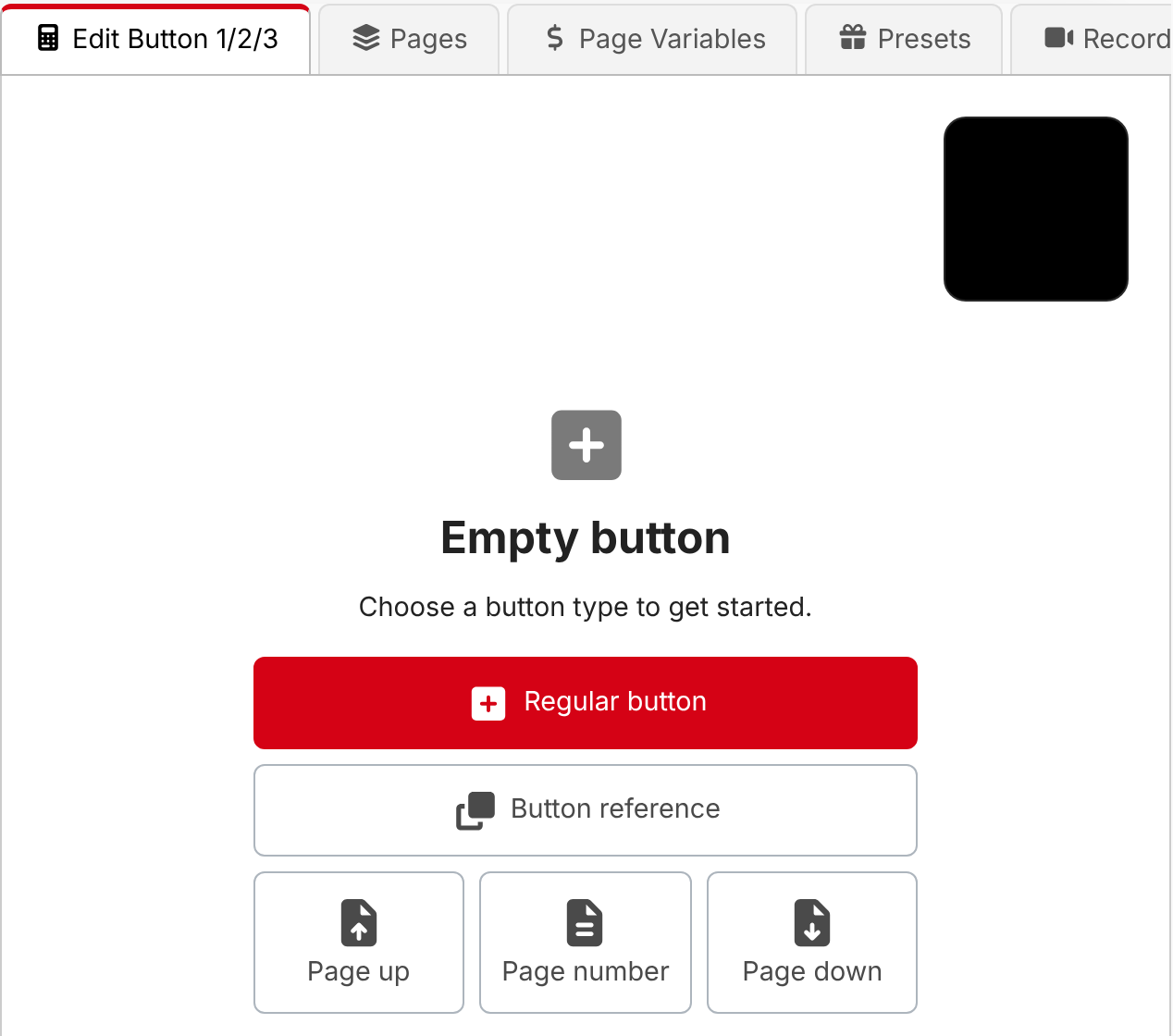
- Choose the type of button to create:
- Regular button: Can trigger one or more actions. This is the type you will use most of the time.
- Button reference: Mirrors another button. See Button references below.
- Page up: Moves the surface up to the next page.
- Page number: Shows the current page number/name. Pressing it returns the surface to its startup page.
- Page down: Moves the surface down to the previous page.
Customising the page buttons
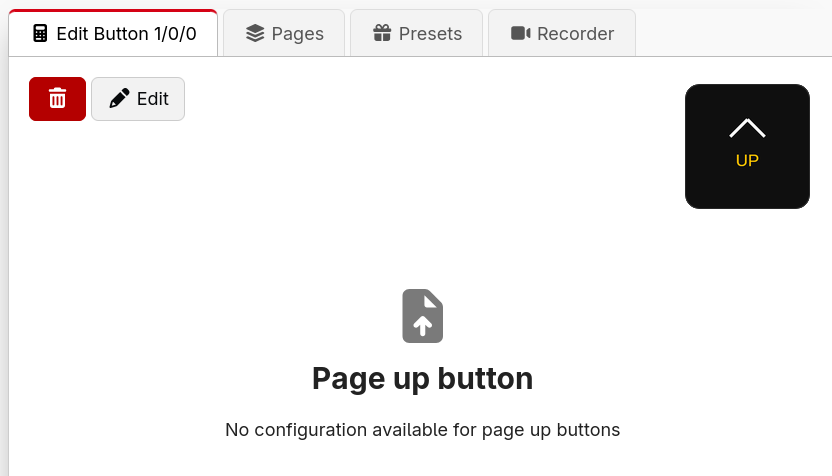
The Page up, Page number and Page down buttons are special buttons with built-in behaviour. If you'd like to change how one of them looks or behaves, click Edit (the pencil icon) to Convert to Normal Button. This turns the special button into a regular button with the equivalent actions already filled in, which you can then restyle and customise freely.
This is a one-way conversion and can't be undone.
Styling the button
A button's appearance is built from layered graphics elements — text, images, shapes and more. This is covered in its own section: Button styling.
A live preview of the button is shown in the top corner of the editor and updates in real time, so you can see your changes immediately on the Emulator and on any connected surfaces.
Behaviour options
As well as its appearance, a button has a couple of behaviour options:
- Step progression — how the button moves between steps when you've defined more than one. See Steps.
- Rotary actions — enable this to support the dials/encoders on a Stream Deck + (and other surfaces with rotation). See Rotary actions below.
Adding actions
Add actions to the button from the Add Press/on action drop-down menu. You can add multiple actions and use the internal: Wait action to delay when certain things happen (delay times are in milliseconds, so 1000ms = 1 second). See Actions for the full details.
Rotary actions
When Rotary actions is enabled, the button gets two extra groups of actions: Rotate left actions and Rotate right actions. These run when the dial or encoder for this button is turned.
Many surfaces report how far the dial was turned in one go, especially when it is turned quickly. The
rotate actions run once for each movement of the dial, and the variable $(this:delta)
tells them how far it moved: a positive number for a turn to the right (clockwise), and a negative number for a
turn to the left. For example, an action which changes a value by $(this:delta) will change it faster the
faster the dial is turned.
$(this:delta) is only available inside the rotate actions.
The Button: Trigger rotate action rotates another button, as if its dial was turned. Its Amount is the
number of steps to rotate: positive numbers rotate to the right and negative numbers to the left. You can set
this to the expression $(this:delta) to pass a physical rotation on to another button.
Button references
A Button reference mirrors another button. It shows exactly what the other button shows, and pressing or turning it is the same as pressing or turning the other button. This is useful when you want the same button in more than one place, such as a "cut" button on every page, without having to keep several copies in sync.
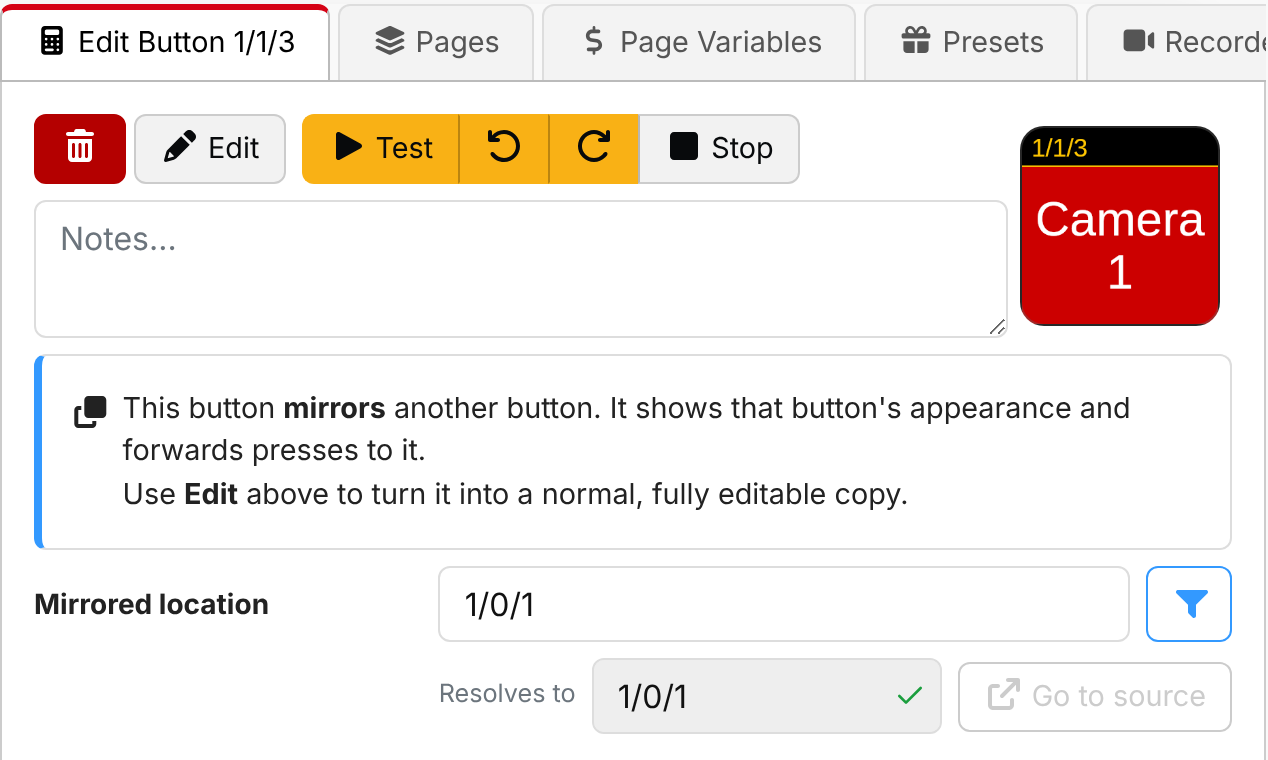
To create one, either choose Button reference when setting up an empty button, or copy a button and then right-click where you want the reference and choose Paste as reference.
The only setting of a reference is the Mirrored location, which is the page/row/column of the button to
mirror, such as 1/0/1. It can contain variables, or be an expression, so a reference can show a different
button depending on something else. For example, with a page variable called camera holding a page number,
$(page:camera)/0/1 mirrors the button at row 0, column 1 of that page. Resolves to shows the location currently being mirrored, and Go to
source opens that button in the editor.
- If the location isn't a valid button, or that button is empty, the reference shows "Unresolved Reference".
- If a reference ends up pointing at itself, either directly or through a chain of other references, it shows "∞".
Click Edit at the top of the editor to turn the reference into a normal, editable copy of the button it is mirroring. This can't be undone.
When you import a page, the locations of button references are not adjusted. If the imported page ends up with a different page number, you may need to update the references.
Notes
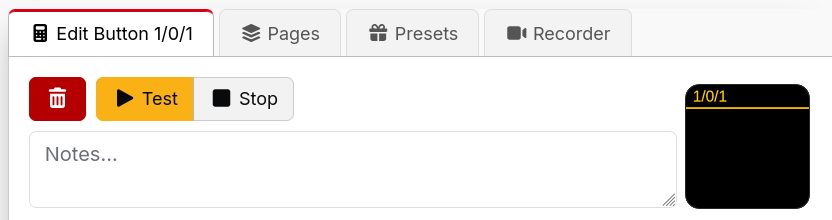
Every button has a Notes field (look for the Notes… box near the top of the button editor). Anything you type here is just for you — it's an internal reminder that never appears on the button itself. It's a great place to jot down why a button is set up the way it is, which is invaluable when you come back to a complex show months later. The same notes field is also available on triggers and expression variables.
Some presets fill in the notes when they are placed, to explain what the button does. These notes are yours to change.