Settings
In the Settings tab, you can configure Companion settings. Settings are applied as soon as you change them; there is no save button. Most settings have a reset button next to them to put them back to their default value.
The Configuration Wizard in the Settings menu walks you through the most important settings again, in the same way as when Companion was first installed.
General
Installation Settings
-
Installation Name
The name of this installation of Companion. This is shown in the header of the web interface and in the browser title, and is used when announcing Companion on the network and to surfaces. This can be useful in networks containing multiple Companion control devices to differentiate between them in different browser tabs.
If the name has been set with theCOMPANION_INSTALL_NAMEenvironment variable (see Server configuration), it can't be changed here.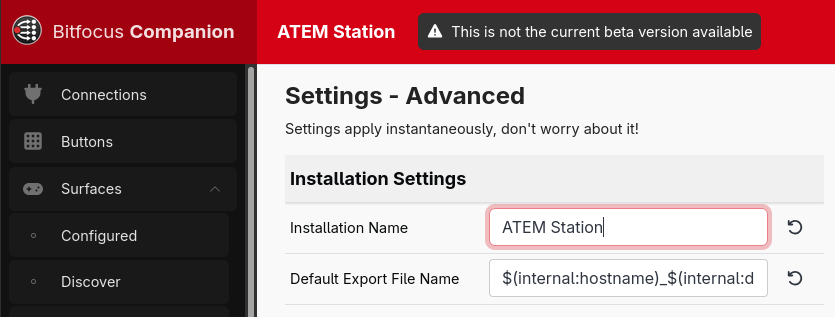
-
Announce Companion on the network (mDNS/Bonjour)
Lets other software and devices, such as Companion Satellite, discover this Companion automatically. -
Default Export File Name
The file name to suggest when exporting. This can include variables, such as the date. -
Default Export Format
The file format to select by default when exporting a full configuration, a page or triggers: Compressed (Default), JSON (Standard) or YAML (More human readable). You can still pick a different format each time you export. See Import / Export. -
Timezone for time variables and triggers
The timezone used for the time and date internal variables, the date expression functions, and time based trigger events. By default this follows the timezone of the computer Companion is running on.
Data Collection
- Enable detailed usage statistics
Share anonymous information about how Companion is used, to help the Companion team decide what to work on. Click View data being collected to see exactly what is shared.
Buttons
-
Flip counting direction on page up/down buttons
When unchecked, pressing the Page Up button will increase to the next page (from page 2 to page 3). When checked, it will decrease to the previous page (from page 2 to page 1). -
Show + and - instead of arrows on page up/down buttons
Changes the page buttons from the standard arrows symbols to + and - symbols instead. -
Default decoration to show on each button. This can be overridden per-button
What to draw around each button: Top bar shows the yellow bar with the button location at the top of each button, Border (when pressed) draws a border around a button while it is pressed instead, and None draws neither. Each button can choose differently, see The canvas & button indicators. -
Show the status icons on each button. This can be overridden per-button
Whether to show the small icons which indicate when a button's connections have a problem, or its actions are running.
Button Grid
-
Grid Size
The number of rows and columns in the button grid. Click Configure Grid Size to change it. The grid can grow in all 4 directions, so you can add rows above or columns to the left of the existing ones. -
Prompt to expand grid when attaching new surface
When a surface which is larger than the grid is connected, offer to make the grid bigger to fit it.
Surfaces
Surfaces are now controlled via Surface Integrations. All surface settings and integration options have been moved to the Surfaces page. Clicking Surfaces in the Settings menu takes you there, to the Surface Integrations and General Settings panel. More details on supported surfaces are available in the chapter on Surfaces.
-
Watch for new USB Devices
Companion can watch for newly connected USB Surfaces if this is enabled. If disabled, you will have to trigger a refresh yourself for Companion to use newly connected Stream Decks. -
Auto-enable newly discovered surfaces
Whether Companion should start using a surface as soon as it is found. Turn this off if you run other software which uses some of your surfaces, so that you can choose which ones Companion uses.
Discovering network surfaces and the Elgato Stream Deck software plugin are now handled by surface integrations, instead of settings here.
PIN lockout
These settings are also on the Surfaces page.
-
Enable PIN Lockout
Allows surfaces to be locked out after a timeout and require a PIN to unlock. -
Link Lockouts
Locks out all surfaces when one is locked out. -
PIN Unlock Code
The PIN that needs to be entered to unlock the surface. -
PIN Lockout Timeout (seconds, 0 to turn off)
The number of seconds of inactivity before a surface locks. Enter0if you don't want it to lock out due to inactivity (instead, add an action to a button to trigger a lockout on demand).
Protocols
The protocols Companion can be controlled with. The panel on the right of this page explains how to use each of them; there is more detail in the Remote control section of this guide.
Several of the older protocols have a Deprecated ... API switch below their main switch. This enables the older commands of that protocol, which will be removed in a future release. Only turn these on if you have something which still needs them.
Satellite
-
Satellite TCP Listen Port and Satellite Websocket Listen Port
The ports Companion listens for satellite clients on. -
Enable Button Subscriptions API
Allows satellite clients to subscribe to any button in Companion, rather than only showing the pages of a surface. This is needed for some integrations to work fully, such as the Elgato Stream Deck plugin, but it lets those clients bypass the PIN lockout and page system.
TCP
If enabled, Companion will listen for TCP messages, allowing for external devices to control Companion.
-
TCP Listener
Check to allow Companion to be controlled over TCP. -
TCP Listen Port
The port to listens to commands on.
UDP
If enabled, Companion will listen for UDP messages, allowing for external devices to control Companion.
-
UDP Listener
Check to allow Companion to be controlled over UDP. -
UDP Listen Port
The port to listens to commands on.
HTTP
- HTTP API
Check to allow Companion to be controlled with the HTTP remote control commands.
REST API
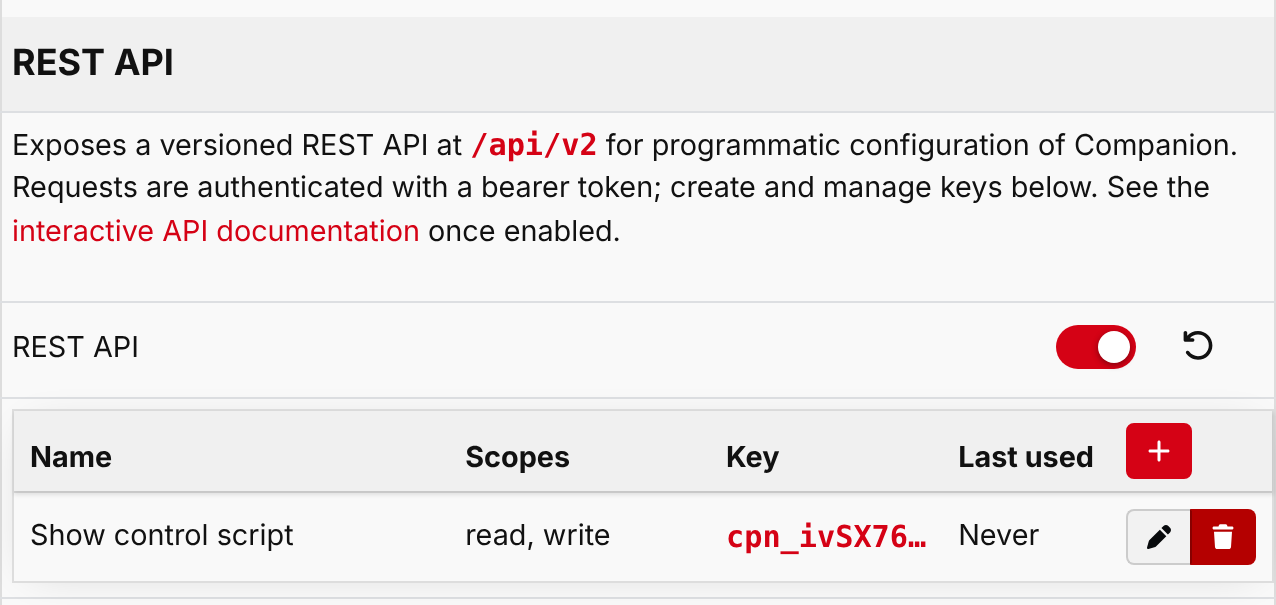
A versioned API for configuring Companion from scripts and other software. It is disabled by default.
- REST API
Check to enable the REST API.
When enabled, a table of API keys is shown. Every request to the REST API must include one of these keys.
- Click + to create a key. Give it a Name and choose its Scopes, which control what the key is allowed to do. See Authentication for what each scope allows.
- The key is shown once, when it is created. Copy it straight away, as it can't be shown again.
- Use the pencil to rename a key or change its scopes, and the bin to revoke it. A revoked key stops working immediately.
Prometheus Metrics
Disabled by default.
-
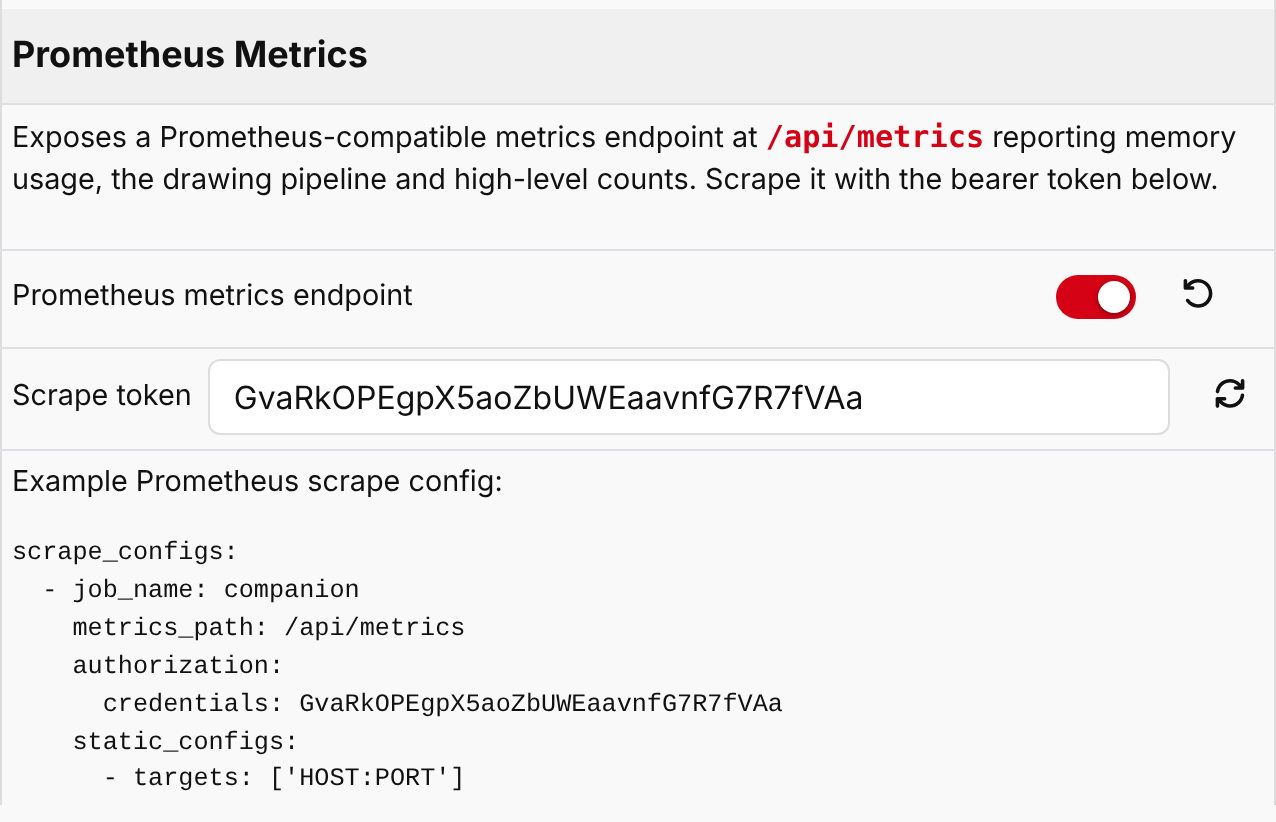
Prometheus metrics endpoint
Check to enable a Prometheus compatible metrics endpoint, for monitoring Companion. See Monitoring with Prometheus. -
Scrape token
The token Prometheus must use to read the metrics. One is generated when the endpoint is enabled. Use the button next to it to generate a new one, which stops the old one from working.
OSC
If enabled, Companion will listen for OSC messages, allowing for external devices to control Companion.
-
OSC Listener
Check to allow Companion to be controlled over OSC. -
OSC Listen Port
The port to listens to commands on.
RossTalk
If enabled, Companion will listen for RossTalk messages, allowing for external devices to control Companion.
- RossTalk Listener
Check to allow Companion to be controlled over RossTalk. Companion listens on port 7788.
Ember+
If enabled, Companion will provide an Ember+ tree, allowing for external devices to control Companion.
- Ember+ Provider
Check to allow Companion to be controlled over Ember+. Companion listens on port 9092.
Artnet II Listener
If enabled, Companion will listen for Artnet messages, allowing for external devices to control Companion. An example GrandMA2 fixture file for controlling Companion can be found on the bottom of that tab.
-
Artnet Listener
Check to allow Companion to be controlled over Artnet. -
Artnet Universe (first is 0)
The Artnet universe Companion will listen on. -
Artnet Channel
The starting channel on the universe Companion listens to.
Backups
Companion can back itself up on a schedule to multiple directories if desired. These backups can be synced to cloud storage or backed up during OS backup to give more piece-of-mind to administrators.
Companion has four different types of backups: Raw Database, Compressed, JSON, and YAML. Raw Database backups are the most complete yet can't be restored using Companion's UI. Compressed, JSON, and YAML backup types can be restored using Companion's UI (see the Restoring section below).
Compressed backups are recommended for most users.
Setting Up Backups
- Click on Add Backup Rule to create a new backup entry
- Fill out the right pane:
- Rule Name - The name of your backup schedule.
- Cron Schedule - Use cron syntax to indicate your backup schedule. You can use crontab guru to help you generate the correct syntax.
- Backup Type - Select a backup type. Compressed backups are recommended for most users.
- Backup Path - Fill out where backups are stored, including your root directory (Linux, Mac OS) or drive letter (Windows). If left blank, Companion will default to its built-in location.
- Backup Name Pattern - Using Companion variables, fill out the name of each backup.
- Number of Backups to Keep - Companion will delete older backups after this number of backups has been reached.
- Click the yellow Run Now button to test your backup rule.
Restoring
Compressed, JSON, and YAML backups can be restored using the Import/Export page. Click Import Configuration and select the backup file.
Raw database backups cannot be imported using Companion's UI.
A list of previous backups can be found at the bottom of the Edit Backup Rule pane after clicking the backup rule. Backups can be deleted using Companion's UI.
Advanced
Admin UI Password
If enabled, Companion will require a password to view any of the configuration pages. This does not make an installation secure, it is only designed to stop casual browsers. It does not protect the remote control protocols or the REST API.
-
Enable Locking Whether to enable the admin password and lockout feature
-
Session Timeout (minutes, 0 for no timeout) How long after being idle should the ui lock itself. If set to 0 then it does not automatically lock
-
Password The password that must be entered to unlock the ui
HTTPS Web Server
An HTTPS server can be enabled for the Companion web interfaces should your deployment require it. It is never recommended to expose the Companion interface to the Internet and HTTPS does not provide any additional security for that configuration.
-
HTTPS Web Server
Check to enable the HTTPS web server. -
HTTPS Port
The port number HTTPS is served on. -
Certificate Type
Select from "Self Signed" to use the native certificate generator or "External" to link to certificate files on the file system.Common Name (Domain Name) Enter the "Common Name" (typically a domain name or hostname) that the self signed certificate should be issued for.
Certificate Expiry Days Select the number of days the self signed certificate should be issued for (365 days is the default)
Private Key File (full path) The full file path for an external private key file.
Certificate File (full path) The full file path for an external certificate file.
Chain File (full path) Optional field to provide the full file path for an external chain file.
Experiments
Do not touch these settings unless you know what you are doing!
- Companion Cloud Tab (Deprecated)
Shows the Cloud page in the menu, for the deprecated Companion Cloud service. This setting is stored in your browser rather than in Companion.