Button styling
In Companion 5.0 the way buttons are drawn has been completely reworked. Instead of a single fixed style (one block of text, one background image, one set of colors), a button is now built up from a stack of graphics elements — small building blocks like text, images and shapes that you layer on top of each other to create exactly the look you want.
If you've used Companion for years, the short version is: everything you used to set in the button style (text, font size, background image, colors) is still here — it's just been split into separate elements that you can add, remove, reposition and restyle individually. A plain button with some text and a background image is now two elements: an Image element and a Text element. Nothing you could do before has gone away; but you can now do a lot more.
The old background color is now the element named Background near the bottom of the stack. There's no dedicated "background" element type — it's simply a Box element that's been sized to fill the whole button (X 0, Y 0, Width 100, Height 100) with no border. You can restyle it, rename it, or delete it like any other element. If you remove it and later want it back, add a Box element.
How the layered editor works
Open the Style tab of a button to edit how it looks. Along the top you'll see two things:
- A live preview of the button, which updates as you make changes (and updates on your real surfaces and the Emulator in real time). You can select, move and resize elements directly on the preview, see Editing on the preview.
- The elements list — the stack of elements that make up the button. Elements at the top of the list are drawn on top of the ones below them, just like layers in an image editor.
Below these are the properties of whatever you have selected. You can drag the bar between the two halves to give either more room.
Along the bottom of the list are two buttons for the things which aren't layers:
- Pinned — the properties you edit most often, gathered from across the button's elements. See Pinned properties below.
- Canvas — always present and can't be deleted; it controls the topbar, status icons and the empty-button look. See The canvas & button indicators for more on it.
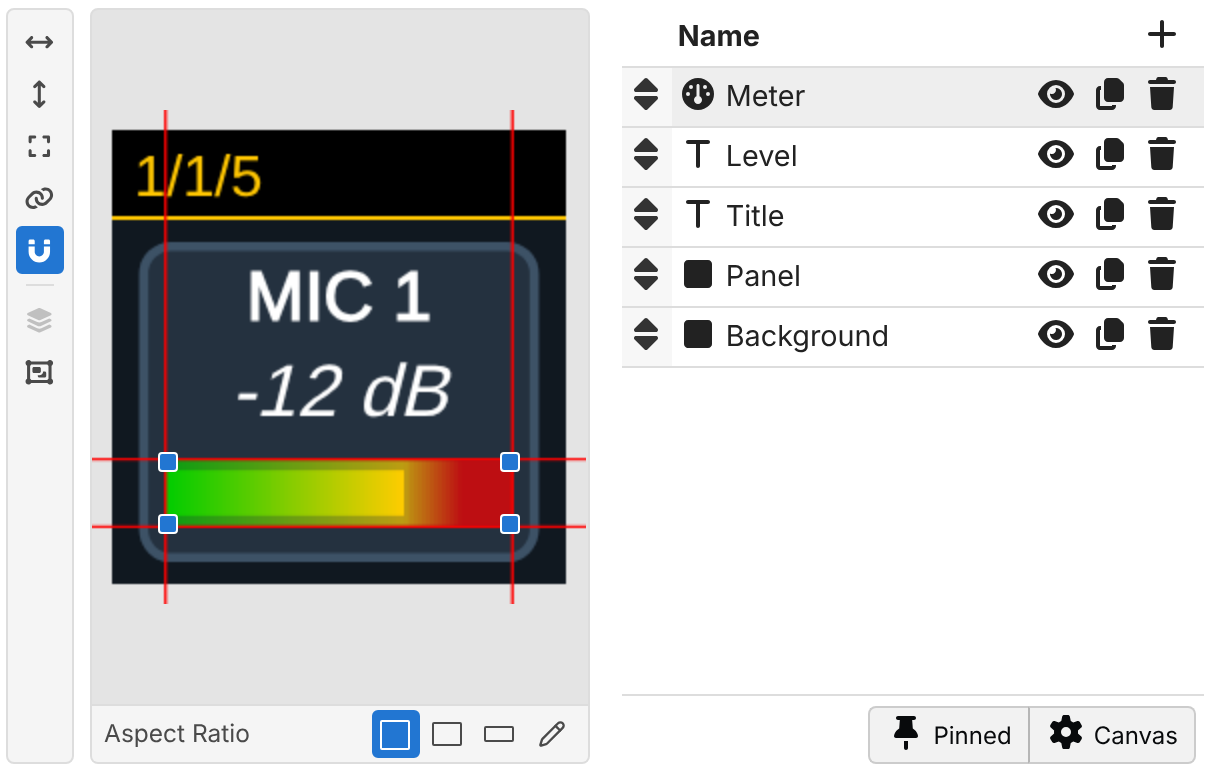
Adding an element
Click + (Add element) at the top of the elements list and pick a type. New elements are added above the one you have selected. The built-in element types are:
| Element | What it's for |
|---|---|
| Group | A container that holds other elements so you can move and reuse them together |
| Text | Show some text — a label, a variable, or the result of an expression |
| Image | Show an image, either uploaded from your computer or from the Image Library |
| Box | A filled rectangle, with optional rounded corners and border |
| Line | A straight line between two points |
| Circle | A circle or arc, with an optional border |
| Gauge | A bar or ring which shows a value, such as a level meter or a progress indicator |
| Reference | Mirror the graphics of another button (great for reusable designs) |
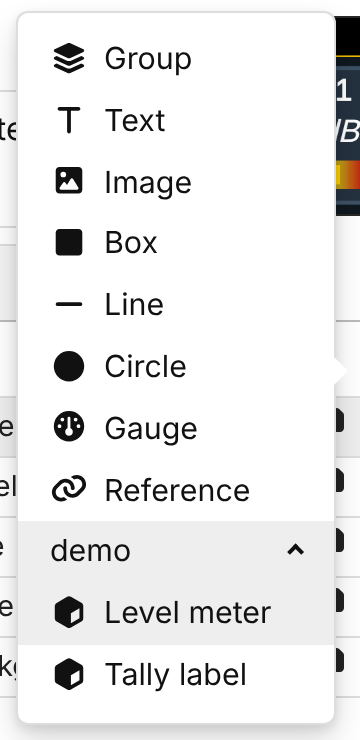
Some modules also provide their own ready-made composite elements — for example a meter or a status badge tailored to that device. When a connection offers these, they appear at the bottom of the Add element menu, grouped under that connection's name. Click the name to show them, and hover over one to see a description of it.
A composite element is drawn as a whole: you can move, resize and rotate it, and change the options the module provides in its Properties section, but not the individual shapes inside it. If the connection which provides a composite element is disabled or removed, the element is drawn as a "Missing Element" placeholder until the connection is back.
This set of built-in elements is just the starting point. We intend to add more building blocks over time as common needs are identified, so expect this list to grow in future releases. If there's an element type you'd find useful, let us know.
Reordering, duplicating and removing
Each row in the elements list has a few controls:
- Drag handle — drag an element up or down to change which layer it sits on. You can also drag an element into or out of a Group.
- Visibility — toggle whether the element is currently shown in the preview render.
- Duplicate — make an exact copy of the element, with all its properties. This is handy when you want two similar bits of text or several evenly-spaced boxes.
- Remove — delete the element.
Editing on the preview
You can edit the layout of a button directly on the preview, much like in a drawing program:
- Click an element on the preview to select it. The top-most element under the pointer is selected. Click an empty part of the preview to deselect it.
- Drag the selected element to move it.
- Drag a corner handle to resize it.
- A Line has a handle at each end instead, which you can drag to move that end of the line.
While dragging, you can hold:
- Shift to only move horizontally or vertically. For a line, this makes it exactly horizontal or vertical.
- Alt to duplicate the element and drag the copy.
- Ctrl (Cmd on macOS) to temporarily turn snapping on or off.
The toolbar down the side of the preview has some quick actions for the selected element:
- Center horizontally and Center vertically — center the element on the button.
- Fill — make the element fill the whole button.
- Link — keep the width and height in proportion when resizing.
- Snapping — snap the element to the edges and centre of the button, and to the edges and centres of other elements, while dragging. Guide lines show what it has snapped to. This is on by default.
- Bring to front and Send to back — move the element to the top or bottom of the elements list.
Some elements can't be edited on the preview. Hover over the disabled toolbar buttons to see why. This happens for elements inside a group, and for elements whose position or size is set by an expression; edit those in the properties below instead.
Previewing other aspect ratios
Many surfaces don't have square buttons. The Aspect Ratio buttons under the preview let you see how your design looks on other shapes of button, without needing that surface connected:
- 1:1 — square, like most Stream Decks.
- 9:7 — the buttons on a Stream Deck Studio.
- 2:1 — the screen above each dial on a Stream Deck +.
- The pencil lets you enter any other W (width) and H (height). It also lists the shapes of buttons on any surfaces which Companion has seen, so you can pick those easily.
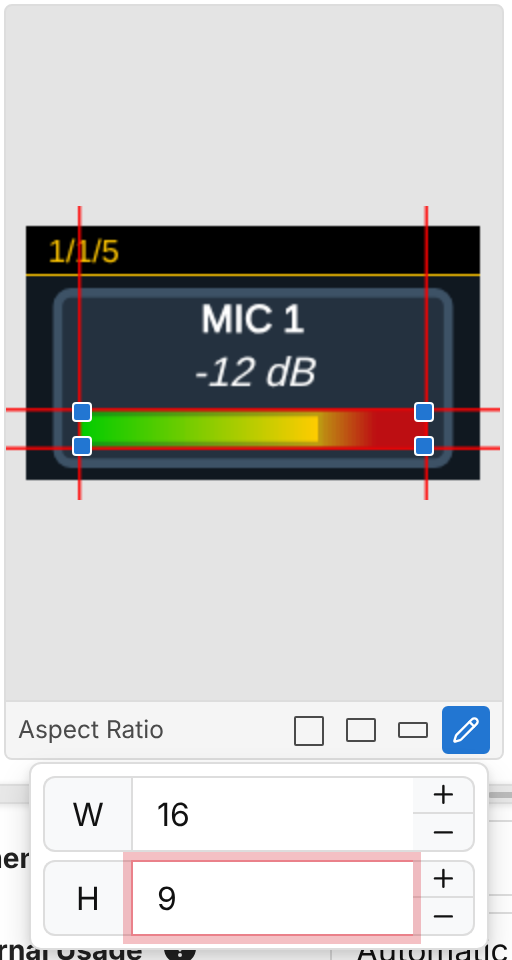
This only changes the preview in the editor, and is remembered by your browser. Positions and sizes are percentages of the button, so the same design works on every shape; see Position & Size below.
Because positions and sizes are percentages, shapes stretch to fit the button. If part of your design must look the same on every shape, such as an arrow or an icon, put it in a group with Square Aspect Ratio turned on. Its contents are then drawn in a square in the middle of the group, whatever shape the button is.
Element properties
Select an element to edit its properties. If you only want the handful of properties you change most often, use Pinned properties below instead of selecting the element at all.
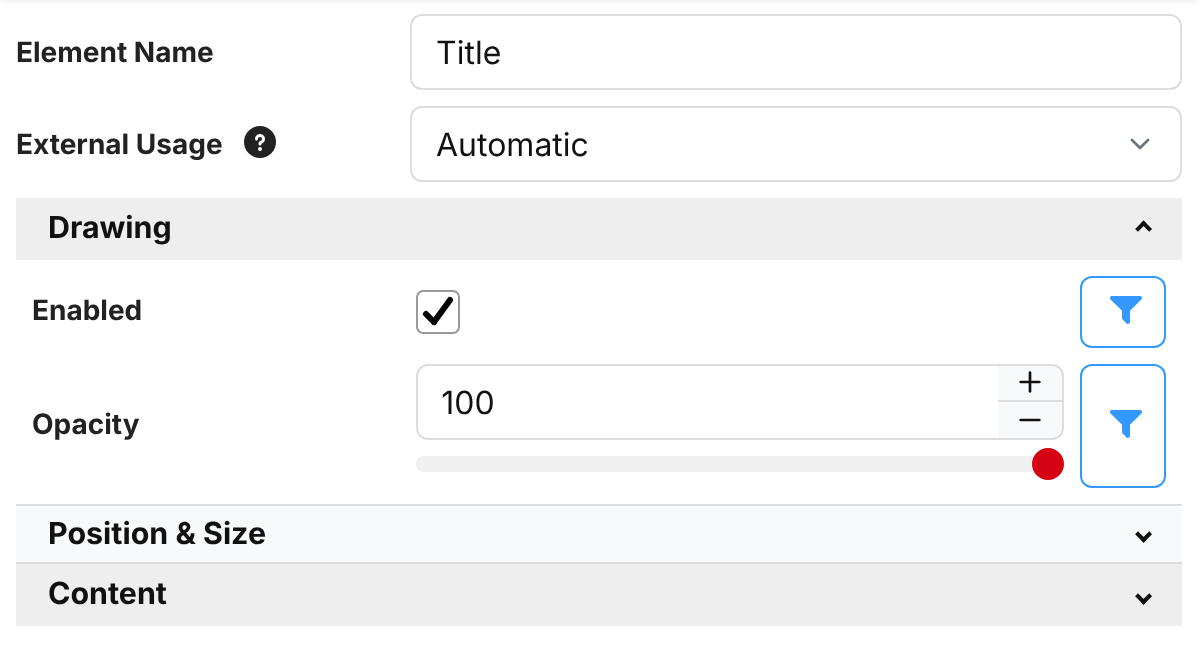
At the top are two fields every element has:
- Element Name — the name shown in the elements list. Give your elements meaningful names, as they are also how you pick them in feedback style overrides.
- External Usage — some surfaces don't have full color screens, and instead show a button's state in simpler ways, such as a colored LED or a ring of lights. Companion normally picks which element to use for this automatically. If it picks the wrong one, set this to Text, Color, Image or Gauge to tell it which element to use for that purpose. See Showing a gauge on surface LEDs.
The rest of the properties are grouped into collapsible sections so the panel stays tidy. Almost every element (except the Canvas) shares two sections:
Drawing
- Enabled — whether the element is drawn. This field accepts an expression, so you can show or
hide an element conditionally. For example, set it to
blink(1000)to make the element blink once a second, or$(custom:armed)to only show it while yourarmedcustom variable is true. - Opacity — how solid the element is, from 0 (invisible) to 100 (fully opaque). Lower values let the layers beneath show through.
Position & Size
Elements are positioned using percentages of the button, not fixed pixels. This means your design looks the same whether it's drawn on a small Stream Deck key or a large high-resolution surface.
- X % / Y % — the top-left corner of the element, as a percentage across and down the button.
- Width % / Height % — the size of the element as a percentage of the button.
- Rotation (degrees) — rotate the element around its centre. Circles don't have this, as it would make no difference.
A Line has a Position section instead, with the From and To points of the line.
For example, an element at X 0, Y 0, Width 100, Height 100 fills the whole button, while
X 50, Y 0, Width 50, Height 100 fills the right-hand half.
Using expressions in properties
Every property can be switched to an expression, using the button at the end of its row. When a property is an expression, Companion shows what the expression currently evaluates to underneath the property's name. This makes it easy to check your expression is doing what you expect, and shows a warning if the expression is invalid or fails to run.
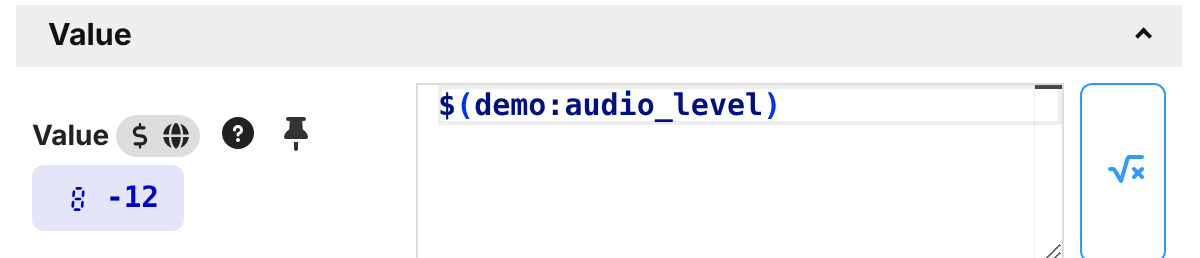
A property which is overridden by one of the button's feedbacks is marked with a small layers icon next to its name, as a reminder that it won't always show the value set here.
Pinned properties
Selecting an element and scrolling to the one property you actually wanted gets tedious when you are relabelling a lot of buttons. Selecting Pinned in the elements list instead shows the properties which have been pinned from across the whole button, grouped by the element they belong to — so a button's text string, its size and color, and the background color behind it are all in one place, with no element to select first.
Each pinnable element type starts with a sensible set pinned:
| Element | Pinned to start with |
|---|---|
| Text | The text, Text Size, Shrink to fit, Color and alignment |
| Image | The image and its alignment |
| Box | Color |
| Circle | Color |
| Line | Line Color and Line Width |
| Gauge | Value |
| Reference | Location |
Groups and composite elements start with nothing pinned. Elements with nothing pinned are left out of the view entirely.
Each group is headed by the element it came from, and collapses like the sections of the property panel do. The arrow at the end of the heading (Edit all properties) opens that element's full property panel — so a property that isn't pinned is one click away (you can also just select the element in the list above). The heading also tells you when an element is disabled or hidden, so you don't spend time editing something that isn't being drawn.
Pinning and unpinning
Hover a property in an element's panel and a pin appears next to its label; click it to pin that property to this button. Hovering a property in the pinned view shows the same control, now offering to unpin it. Pins are stored per element per button, so pinning the font size of one button's text doesn't change any other button.
Companion remembers which entry of the elements list you had selected and reselects it on the next button you open. Because Pinned exists on every button, leaving it selected means every button you click lands straight on its pinned properties.
The simple shape elements
Box, Line and Circle are straightforward and are useful for backgrounds, dividers, borders and indicator dots.
- Box — a filled rectangle. It has a Fill section and a Border section (width, color, and
whether the border is drawn inside, centred on, or outside the edge). As well as the color, the Fill
section has a Corner Radius % to round off the corners:
0gives square corners, and100makes the shorter sides fully rounded, like a pill. - Line — a straight line. You set the From and To points (each as X %/Y %) and the line's width, color and position.
- Circle — a circle or arc. As well as a fill and border, you can set a Start Angle and End Angle to draw just part of the circle, and tick Draw Slice to fill it as a pie-slice instead of a thin arc.
The richer elements
The remaining element types each have a page of their own:
- Text element — fonts, sizing and alignment
- Image element — uploading images and using the Image Library
- Gauge element — bars, rings and meters which show a value
- Groups & references — organising and reusing elements
- The canvas & button indicators — the topbar, status icons and empty buttons