Actions
The actions define the behaviour of the button when it is pressed or released (or when triggered externally).
Multiple actions, even those from multiple modules, can be linked to a button. Most actions have options to let you customize how it performs.
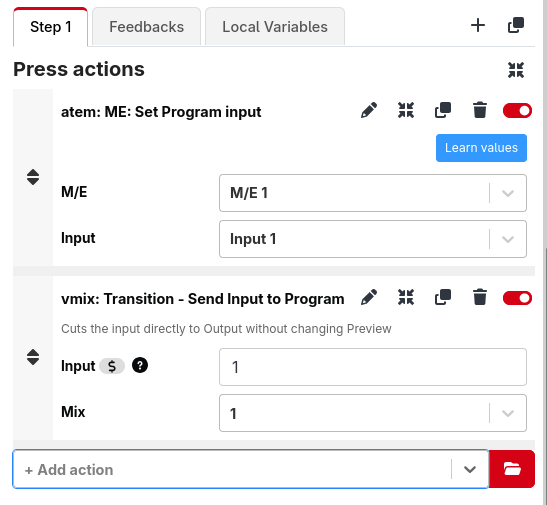
To add an action to a button, you can either search in the box below, or click the folder button to bring up a more detailed view of all the actions available.
Companion has various built-in actions which you can use, as well as those provided by the modules.
Each button has multiple groups of actions that can be executed
The Press actions will be performed when the button is pressed or triggered.
The Release actions are performed when the button is released.
It is also possible to add some timed groups, to allow for long presses. You can add one with the Add duration group button.
Once added you can edit the time of that group and whether it executed upon release or while being held.
When there is a duration group added, the Release actions becomes Short release actions, and will only be executed when released before the first duration group time is reached.
Starting in Companion 3.5, the delays have been replaced with a new internal: Wait Action. This will delay all actions that follow it in the list.
Actions at the root level get executed in the Concurrent mode described below.
Changing execution behaviour
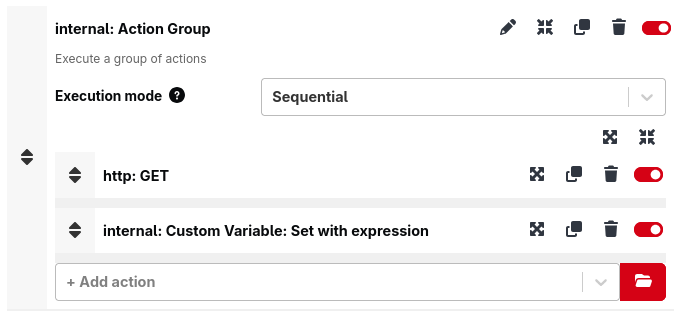
To allow for more complex setups and customisability, there is also a new internal: Action Group action.
This action acts as a group that can contain other actions, including other Action Group
These groups have a few modes of execution
- Inherit follows the mode of the parent group
- Concurrent this is equivalent to previous releases of Companion, with Absolute Delays enabled.
In this mode, the actions get executed in parallel, broken up between any internal: Wait actions. - Sequential In this mode, the actions get executed in order, waiting for the previous one to complete execution before starting the next.
Not every module implementats actions in a way that lets Companion know that execution has completed, but many do.
This allows for programming complex sequences that must be done in a particular order without relying on small delays
Conditional actions and loops
The Logic: If statement action runs its Then actions only when all of its When True conditions are true, and its Else actions otherwise. The Logic: While loop action repeats its actions for as long as all of its While True conditions are true.
The conditions are feedbacks. The built-in (internal) feedbacks in these conditions are checked at the moment the action runs, rather than using a value which was calculated earlier. This means:
- they see variable values as they are right now, including values changed by actions which ran just before them. A While loop checks the latest values on every repeat, so the actions inside it can change the variable which ends the loop.
- they can use the details of what caused the actions to run, such as
$(this:surface_id)for the surface which was pressed, or$(this:delta)inside a rotary action.
Feedbacks from connections can also be used as conditions, but they still use the most recent value reported by the connection.
Put a Wait action inside a While loop. Without one, the loop repeats as fast as it can, up to hundreds of times a second, which can use a lot of CPU and flood your devices with commands. Waiting even a short time, such as 100ms, between repeats is usually plenty.
Storing an action's result
Some module actions return a result — for example fetching a value from a device, or running a query. For these actions you'll see a Store Action Result option, which lets you capture that result for use elsewhere instead of discarding it.
You can store the result into:
- a Local variable — choose a button location (such as
$(this:page)/$(this:row)/$(this:column)for this button) and the local variable name to write to, - a Page variable — choose a page and the page variable name to write to, or
- a Custom variable — choose an existing custom variable, with an option to create it if it doesn't exist yet.
Choose <discard> if you don't need the result.
Once stored, the value is just a normal variable you can reference in button text, feedbacks or other actions. This only appears on actions that actually return a result; most actions don't.