Buttons
In the Buttons tab, you can configure the buttons for your Stream Deck.
You can change the size of the grid to any size you wish, in the Buttons settings page. It can grow in all 4 directions.
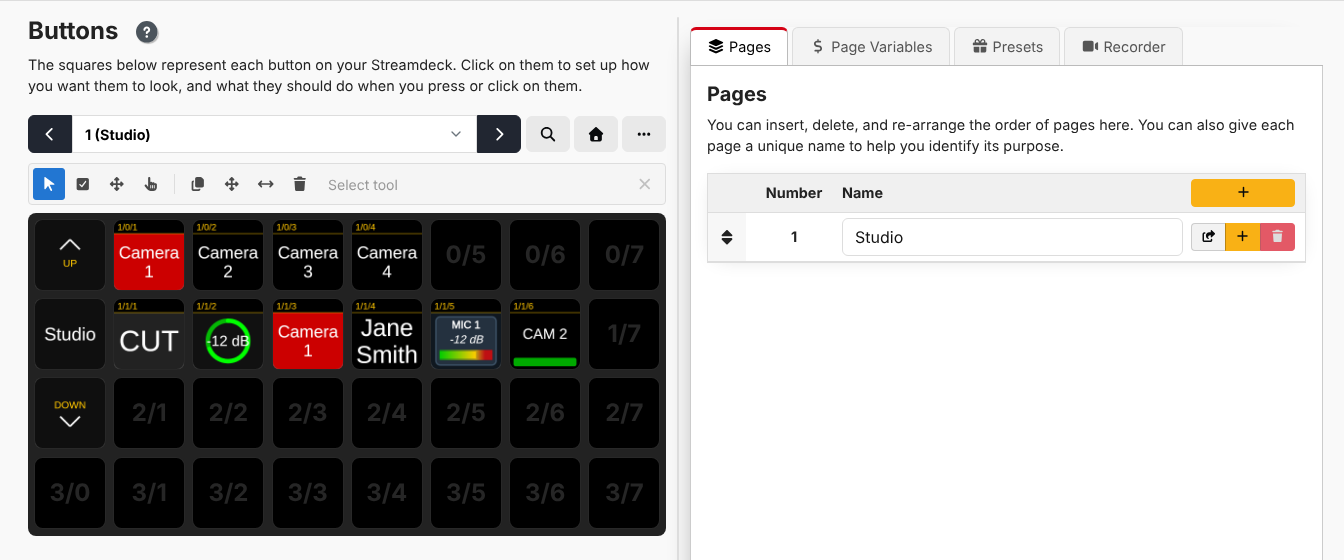
The Buttons layout has multiple pages that can be navigated using the left/right arrows or the dropdown. Each page is also listed in the Pages tab in the right panel where you can manage pages and give them names. See Pages for more.
Next to the page selector you'll find:
- View Scale (magnifying glass) — adjust how large the grid is drawn.
- Home Position — when scrolling a large grid, snap the view back to 0/0 (top-left).
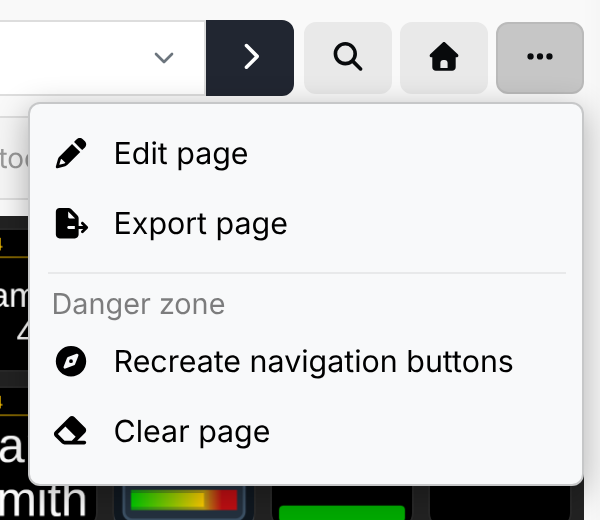
- Page actions (…) — a menu of things you can do to the whole page:
- Edit page — adjust settings for the current page.
- Export page — download this page's buttons for import into another page or Companion config. See Import / Export.
- Recreate navigation buttons — puts the default page up, page number and page down buttons back in the first column, replacing whatever is there.
- Clear page — erases every button on the page.
Selecting and arranging buttons
The toolbar above the grid chooses what clicking on the grid does. Hover over a tool to see its name.

The first group of tools changes how you select buttons:
- Select — the default. Click a button to select it and open it in the editor. You can also drag a box across the grid to select several buttons at once, Shift-click to select a range, or Ctrl/Cmd-click to add or remove a single button from the selection.
- Multi — each click adds a button to, or removes it from, the selection. This is the easiest way to pick several buttons on a touchscreen.
- Arrange — drag any button to move it, without opening it in the editor.
- Press — clicking a button presses it for real, running its actions, just as if you had pressed it on a surface.
The second group of tools rearranges buttons. Pick a tool, click the button you want to use (unless you already have buttons selected), then click where it should go. The text at the end of the toolbar tells you what it is waiting for.
- Copy — copy a button somewhere else. This can be on another page.
- Move — move a button somewhere else.
- Swap — swap two buttons.
- Delete — clear a button.
These tools stay active after each use, so you can copy the same button several times in a row. Click the tool again, or press Escape, to go back to Select. The ✕ at the end of the toolbar cancels whatever the grid is in the middle of, and clears the selection.
When you have several buttons selected, you can drag the whole selection to a new place. If any of them would land on buttons which already exist, Companion asks before overwriting them.
In older versions of Companion you could hold down Shift and click a button to press it. This has been replaced by the Press tool.
The right-click menu
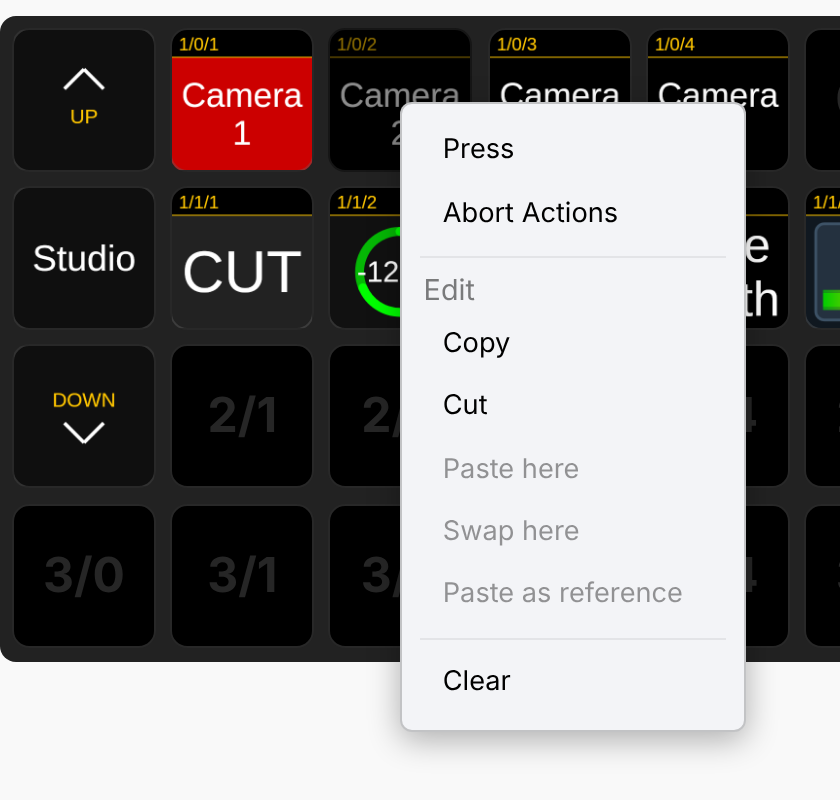
Right-click a button for a menu of the common operations:
- Press and Abort Actions — press the button, or stop any of its actions which are still running.
- Copy and Cut — put the button on the clipboard.
- Paste here, or Move here after a cut — place the clipboard contents at this button.
- Swap here — swap this button with the one on the clipboard.
- Paste as reference — create a button reference here which mirrors the copied button.
- Clear — clear this button.
If you right-click inside a selection of several buttons, the menu acts on the whole selection, for example Copy 4 buttons.
Keyboard shortcuts
When the grid has focus, you can use the keyboard too:
| Key | What it does |
|---|---|
| Arrow keys | Move the selection |
| Shift + arrow keys | Extend the selection |
| Ctrl/Cmd + arrow keys | Move the focus without changing the selection |
| Space | Add or remove the focused button from the selection |
| Ctrl/Cmd + A | Select every button on the page |
| Ctrl/Cmd + C / X / V | Copy, cut and paste the selected buttons |
| Delete / Backspace | Clear the selected buttons (you will be asked to confirm) |
| Page Up / Page Down | Go to the next / previous page |
| Ctrl/Cmd + = / - / 0 | Zoom the grid in, out, or back to the default size |
| Escape | Cancel the current tool, then the selection, then the clipboard |
When pasting several buttons, they are placed relative to the top-left button of the selection you copied. If some of them would land outside of the grid, nothing is pasted.