Start the server
When you open Companion, the launcher window will appear. From the opening screen, choose your network interface and change the port if needed — the default is 8000. This is the port of the Companion server.
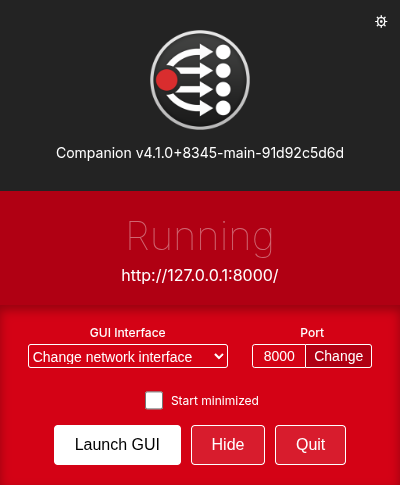
If you need to remotely control Companion from other computers on the same network, change the 'GUI Interface' to make Companion accessible on a different network interface, and use the URL shown underneath the text “Running”. To configure Companion from the computer you're running it on, click the Launch GUI button — it will open the Admin page in your default browser.
We recommend using Google Chrome, but other up-to-date browsers should work. There are known issues with the built-in browsers on older Android and iOS devices.
The main launcher window also has a couple of convenience options: Start minimized, and (on macOS and Windows) Run at login to start Companion automatically when you log in.
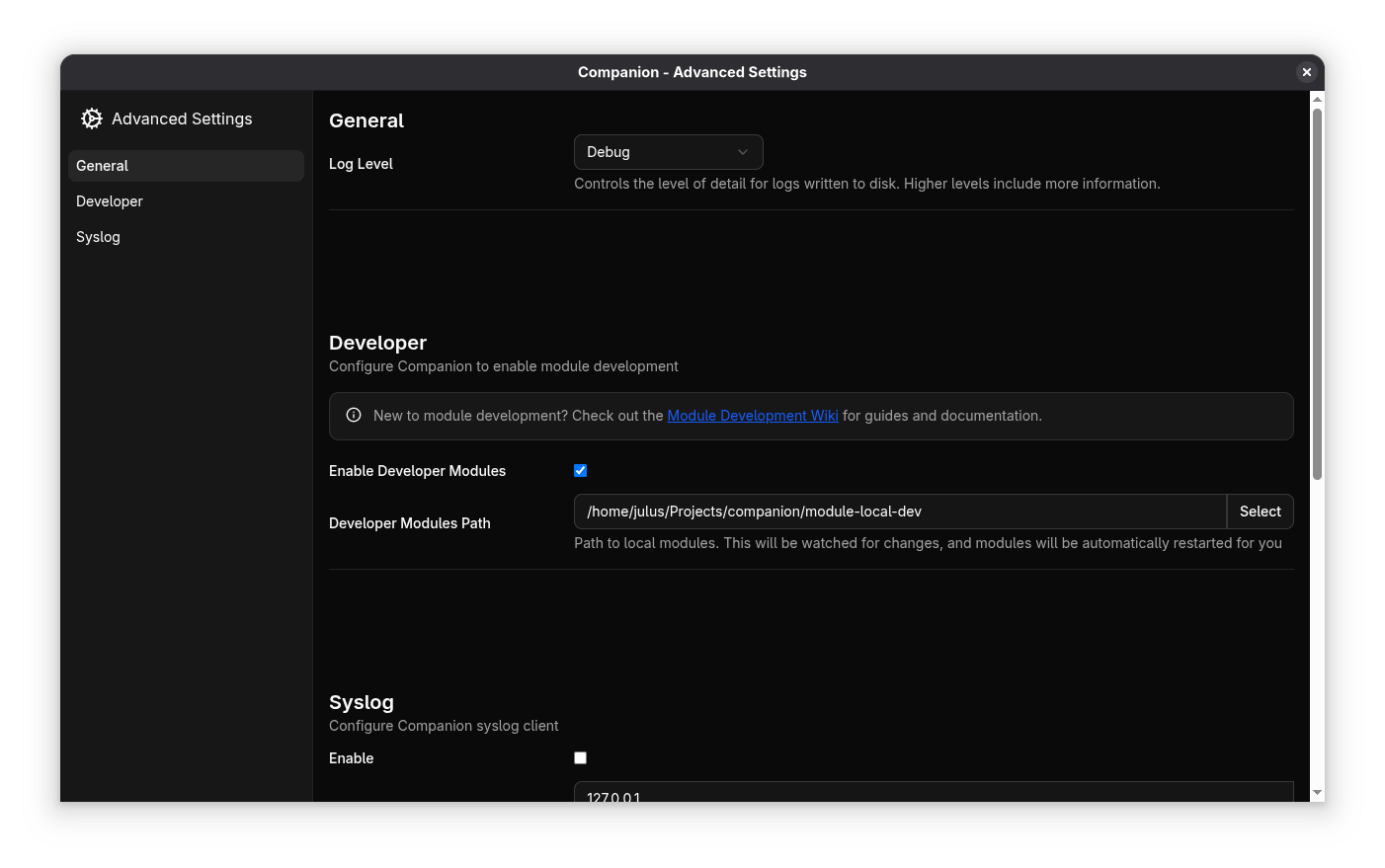
Settings window
Click the cog in the top right corner to open the launcher's settings window. This is where you configure the deeper, launch-level options, grouped into sections:
- General — the log level.
- Dangerous Features — the Shell command support and Restricted modules security toggles (both off by default), and Trusted proxies for reverse-proxy setups.
- Developer — enable developer modules and point Companion at a local modules folder. If you're a module developer you'll want this; see the module development docs.
- Syslog — forward Companion's logs to a syslog server.
These are the same options described in Server configuration, which explains what each one does. Note that changing the security toggles restarts Companion.