Headless configuration
On a desktop install you configure Companion's launch-level options through the launcher's settings window. A headless or server install (like CompanionPi) has no launcher window, so instead you edit the same options from the command line.
For an explanation of what each option actually does, see Server configuration. This page covers how to edit them on a headless install.
Editing the configuration
On a CompanionPi or scripted Linux install, run:
sudo companion-config
This must be run as root (hence sudo). It opens an interactive editor in your terminal, with the
options grouped into pages — Network, Logging, Syslog, Security, Paths and Advanced. Use it to change
the admin port, logging, the security toggles and so on.
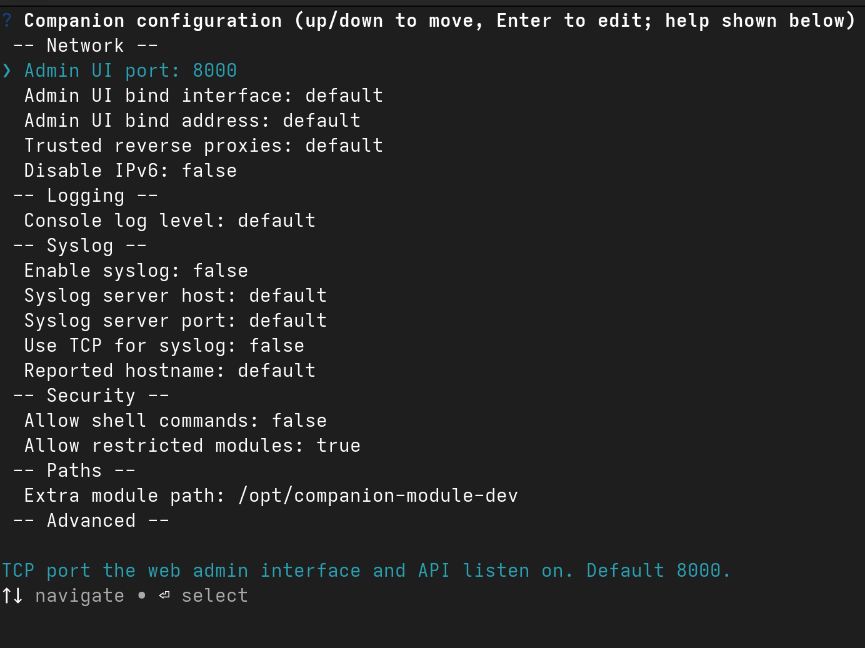
When you save your changes, Companion restarts automatically to pick them up (if the service is running). If Companion isn't currently running, your changes will apply the next time it starts.
Editing the file by hand
The settings are stored in a simple YAML file at:
/etc/companion/config.yaml
You're free to edit this file directly if you prefer. Comments and formatting are preserved, so it's
safe to edit by hand. To remove a setting and fall back to its built-in default, delete the key (or
set it to null).
If you edit the file by hand rather than using sudo companion-config, restart Companion yourself
afterward for the changes to take effect:
sudo systemctl restart companion