Gauge element
A Gauge element shows a number as a bar or a ring that fills up as the value rises. It's ideal for audio levels, fader positions, progress through a clip, battery levels, timers, and anything else where seeing a value at a glance is more useful than reading a number.
As well as the shared Drawing and Position & Size sections (see Button styling), a Gauge element has several sections of its own.
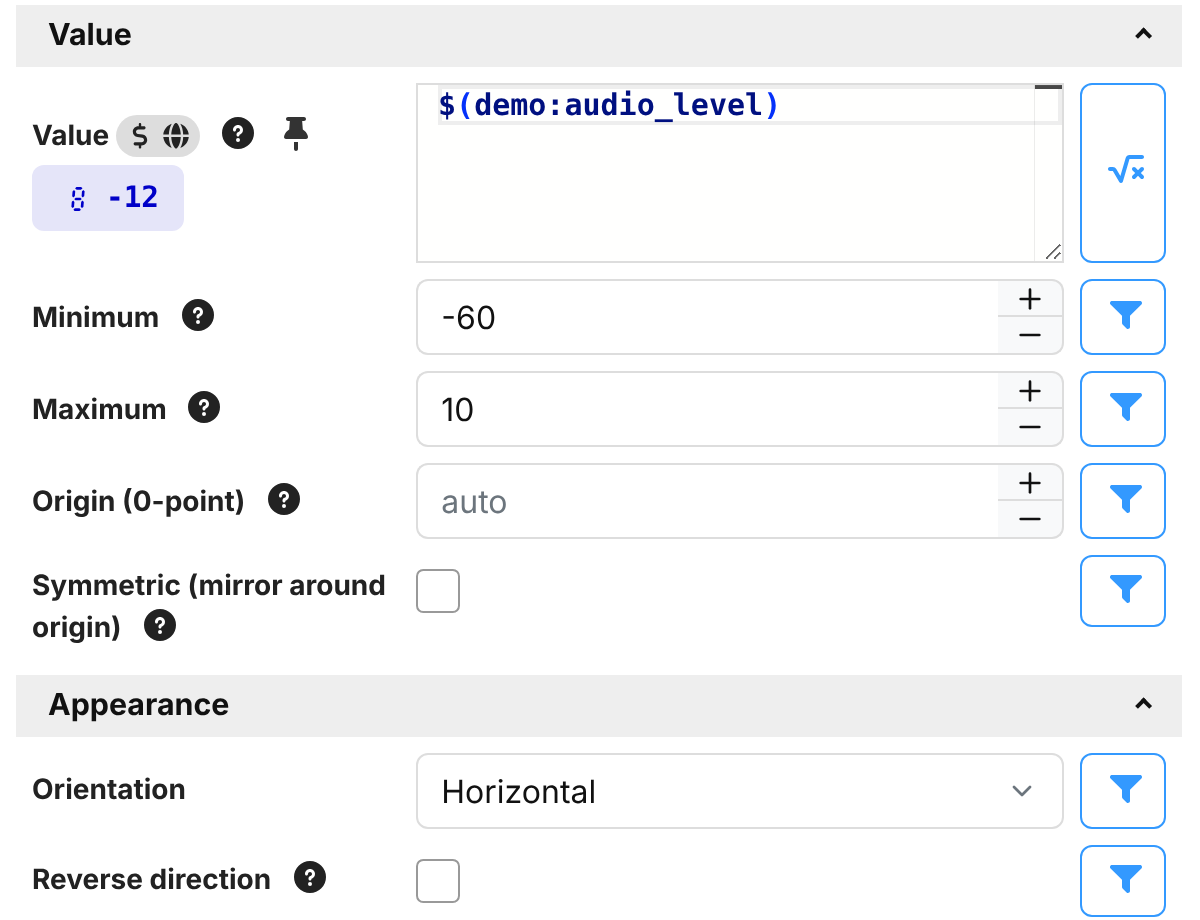
Value
- Value — the value to show. You'll almost always want this to be a variable or an
expression, such as
$(mixer:fader1_level). - Minimum / Maximum — the range of the gauge. A value at the Minimum shows an empty gauge, and a value at the Maximum a full one. Values outside of this range are shown as empty or full.
- Origin (0-point) — the value the fill grows from. Leave it empty (auto) for a normal gauge which fills
up from the Minimum. Set it to a value in the middle of the range for a gauge which fills out to either side
of the middle, such as for a pan control from
-100to100with an origin of0. - Symmetric (mirror around origin) — when enabled, the fill grows outward in both directions from the origin as the value rises, which suits things like stereo width.
Appearance
- Orientation — Horizontal, Vertical or Ring.
- Reverse direction — fill from the other end: right-to-left, top-to-bottom, or counter-clockwise.
The Circular styling section applies to the Ring orientation only:
- Start angle / End angle — where the ring starts and ends, in degrees clockwise from the top. Leave a
gap between them to draw an arc rather than a full circle, for example
225to135for a dial-like arc with the gap at the bottom. - Ring width (%) — the thickness of the ring, as a percentage of the element's shorter side.
- Rounded ends — round off the ends of the filled part of the ring.
Fill
- Show fill — draw the filled part of the gauge.
- Fill width (%) — how thick the fill is, relative to the space available. Making this smaller than the track gives a slim fill running along a wider track.
- Color stops — the colors used for the fill. Each stop has a Value where its color starts, and a
Color. For example, a level meter might have green from the minimum, yellow from
-12and red from0. Tick Gradient to next to blend smoothly into the next stop's color, rather than changing suddenly. Colors can be partly transparent. Use Add stop to add another. - Multi-color fill — when enabled, each color is shown in its own part of the fill, like a traditional level meter. When disabled, the whole fill is drawn in the color for the current value.
Marker
A marker is a line drawn at the current value.
- Show marker — draw the marker.
- Color — the color of the marker.
- Width (%) — how thick the marker is.
Track (background)
The track is the part of the gauge which isn't filled.
- Style — Transparent leaves it empty, so whatever is behind the gauge shows through. Dimmed (darker) draws it in a darker version of the fill colors, so you can see the whole range of the gauge.
- Amount (%) — for a dimmed track, how much of the color remains:
0is black, and100is the same as the fill. - Track width (%) — how thick the track is, relative to the space available.
Showing a gauge on surface LEDs
A gauge can also be shown on the lights of a surface, such as the light rings around the dials of a Stream Deck Studio. The lights show the same colors as the gauge on screen. This needs a surface whose module supports it.
When a button with a gauge is placed on such a control, Companion shows the button's first gauge on its lights. If the button has more than one gauge and the wrong one is being used, set the External Usage of the gauge you want to Gauge. Gauges with any other External Usage besides Automatic are never used for the lights.
A few things are different on the lights:
- The marker isn't shown.
- A Ring gauge on a ring of lights follows the Start angle and End angle, and lights outside of the arc stay off. On a strip of lights, or for other orientations, the value is spread across all of the lights.
- Transparent colors are shown against black.